# Outil - Wireshark

Outil de sniffing du réseau et d’analyse de trame.

# Wireshark - Installation et utilisation

<table id="bkmrk-difficult%C3%A9%2A-%3Cdescrip" style="border-collapse: collapse; width: 100%; height: 46.8px; border-width: 1px; border-style: hidden;"><colgroup><col style="width: 20%;"></col><col style="width: 80%;"></col></colgroup><tbody><tr style="height: 46.8px;"><td style="height: 46.8px; border: 1px groove rgb(52,73,94);">[![Confirmé.png](https://docs.labs404.fr/uploads/images/gallery/2026-07/scaled-1680-/Cfnconfirme-png.png)](https://docs.labs404.fr/uploads/images/gallery/2026-07/scaled-1680-/Cfnconfirme-png.png)</td><td style="height: 46.8px; border-width: 1px; background-color: rgb(236,202,250); vertical-align: top;">Difficulté : Confirmé

Notions : Réseaux, protocoles, analyse de trame.

</td></tr></tbody></table>

---

### <span style="color: rgb(52,73,94);">**<span style="text-decoration: underline;">I.Introduction</span>**</span>

Ce document a pour but de vous apprendre à utiliser les fonctions basiques de wireshark. Ce qui peut être utile pour annalyser la cause d’un problème réseau ou tester le bon fonctionnement d’un protocole.

<p class="callout info">Wireshark peut être téléchargé ici : [Download Wireshark](https://www.wireshark.org/download.html)  
</p>

<p class="callout danger">Prérequis : Un poste sous Windows 7 minimum, Une carte réseau RJ45 ou une carte wifi.  
</p>

---

### <span style="color: rgb(52,73,94);">**<span style="text-decoration: underline;">II. Installation</span>**</span>

#### <span style="color: rgb(35,111,161);">**2.1 Lancement de l'installation**</span>  


*Lancer l’installer.*

[![image.png](https://docs.labs404.fr/uploads/images/gallery/2026-07/scaled-1680-/WPdimage-png.png)](https://docs.labs404.fr/uploads/images/gallery/2026-07/scaled-1680-/WPdimage-png.png)

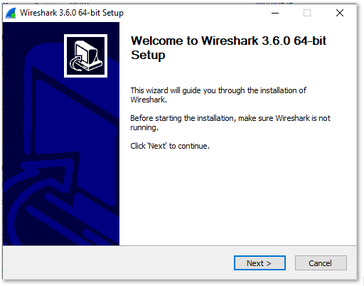
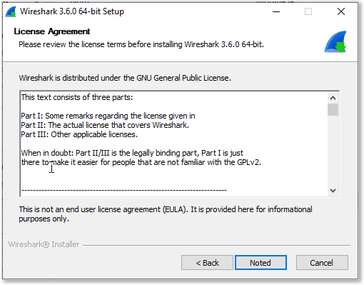
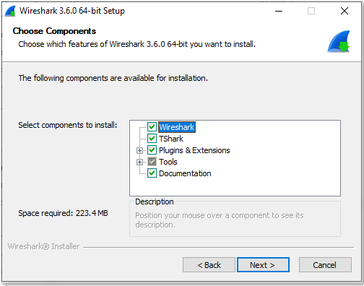
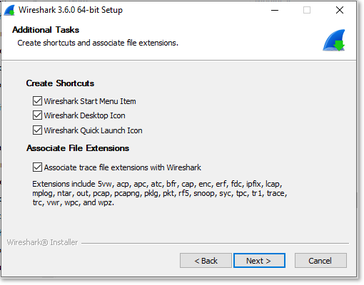
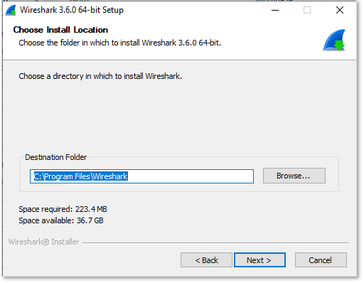
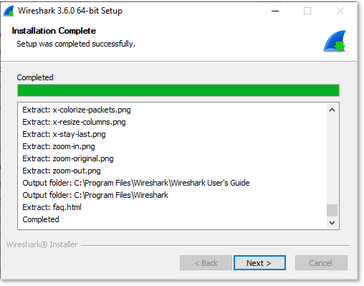
L’installation est basique. Il suffit de suivre l’assistant d’installation.

<table id="bkmrk--4" style="border-collapse: collapse; width: 100%; height: 1213.8px;"><colgroup><col style="width: 50%;"></col><col style="width: 50%;"></col></colgroup><tbody><tr style="height: 303.7px;"><td style="border-style: hidden; height: 303.7px;">[![image.png](https://docs.labs404.fr/uploads/images/gallery/2026-07/scaled-1680-/abNimage-png.png)](https://docs.labs404.fr/uploads/images/gallery/2026-07/scaled-1680-/abNimage-png.png)

</td><td style="border-style: hidden; height: 303.7px;">[![image.png](https://docs.labs404.fr/uploads/images/gallery/2026-07/scaled-1680-/Q7Iimage-png.png)](https://docs.labs404.fr/uploads/images/gallery/2026-07/scaled-1680-/Q7Iimage-png.png)

</td></tr><tr style="height: 303.7px;"><td style="border-style: hidden; height: 303.7px;">[![image.png](https://docs.labs404.fr/uploads/images/gallery/2026-07/scaled-1680-/bNximage-png.png)](https://docs.labs404.fr/uploads/images/gallery/2026-07/scaled-1680-/bNximage-png.png)

</td><td style="border-style: hidden; height: 303.7px;">[![image.png](https://docs.labs404.fr/uploads/images/gallery/2026-07/scaled-1680-/rdeimage-png.png)](https://docs.labs404.fr/uploads/images/gallery/2026-07/scaled-1680-/rdeimage-png.png)

</td></tr><tr style="height: 301.7px;"><td style="border-style: hidden; height: 301.7px;">[![image.png](https://docs.labs404.fr/uploads/images/gallery/2026-07/scaled-1680-/NjFimage-png.png)](https://docs.labs404.fr/uploads/images/gallery/2026-07/scaled-1680-/NjFimage-png.png)

</td><td style="border-style: hidden; height: 301.7px;">[![image.png](https://docs.labs404.fr/uploads/images/gallery/2026-07/scaled-1680-/4ikimage-png.png)](https://docs.labs404.fr/uploads/images/gallery/2026-07/scaled-1680-/4ikimage-png.png)

</td></tr><tr style="height: 304.7px;"><td style="border-style: hidden; height: 304.7px;">[![image.png](https://docs.labs404.fr/uploads/images/gallery/2026-07/scaled-1680-/ckgimage-png.png)](https://docs.labs404.fr/uploads/images/gallery/2026-07/scaled-1680-/ckgimage-png.png)

</td><td style="border-style: hidden; height: 304.7px;">[![image.png](https://docs.labs404.fr/uploads/images/gallery/2026-07/scaled-1680-/eSiimage-png.png)](https://docs.labs404.fr/uploads/images/gallery/2026-07/scaled-1680-/eSiimage-png.png)

</td></tr></tbody></table>

#### **<span style="color: rgb(35,111,161);">2.2 Installation de Npcap</span>** 

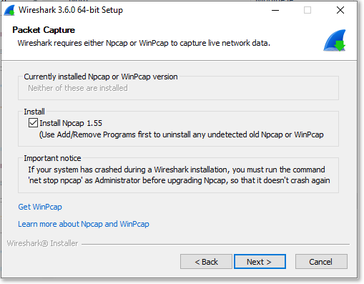
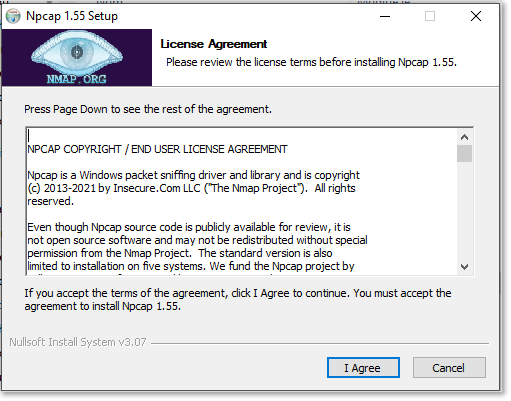
Lors de l’installation de Npcap, Valider en Cliquant sur ‘<span style="color: rgb(132,63,161);">***<span class="fabric-text-color-mark">I Agree</span>***</span>’

[![image.png](https://docs.labs404.fr/uploads/images/gallery/2026-07/scaled-1680-/1Y3image-png.png)](https://docs.labs404.fr/uploads/images/gallery/2026-07/scaled-1680-/1Y3image-png.png)

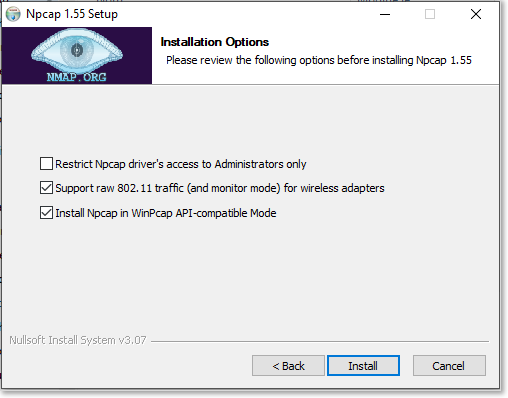
Cocher les cases suivantes :

[![image.png](https://docs.labs404.fr/uploads/images/gallery/2026-07/scaled-1680-/7y8image-png.png)](https://docs.labs404.fr/uploads/images/gallery/2026-07/scaled-1680-/7y8image-png.png)
<table id="bkmrk--8" style="border-collapse: collapse; width: 100%;"><colgroup><col style="width: 50%;"></col><col style="width: 50%;"></col></colgroup><tbody><tr><td style="border-style: hidden;">[![image.png](https://docs.labs404.fr/uploads/images/gallery/2026-07/scaled-1680-/ZaJimage-png.png)](https://docs.labs404.fr/uploads/images/gallery/2026-07/scaled-1680-/ZaJimage-png.png)

</td><td style="border-style: hidden;">[![image.png](https://docs.labs404.fr/uploads/images/gallery/2026-07/scaled-1680-/TF9image-png.png)](https://docs.labs404.fr/uploads/images/gallery/2026-07/scaled-1680-/TF9image-png.png)

</td></tr></tbody></table>

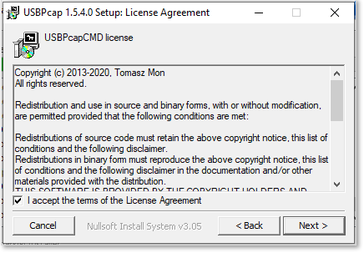
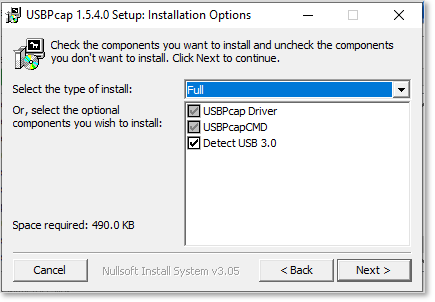
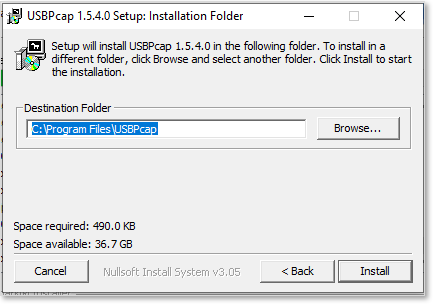
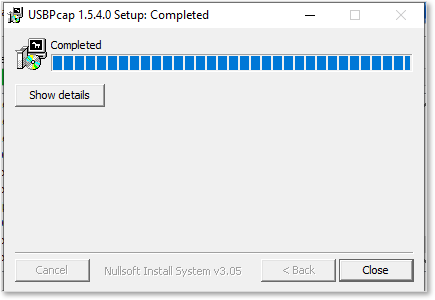
#### <span style="color: rgb(35,111,161);">**2.3 Installation de USBpcap**</span>

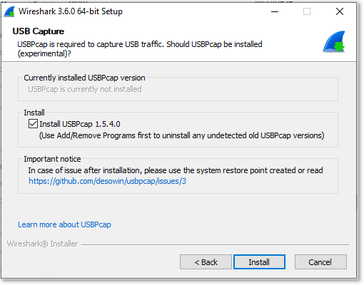
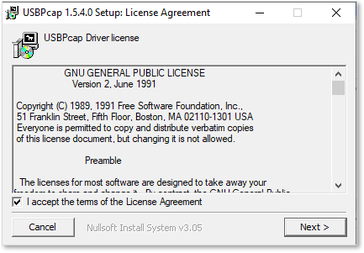
Puis, Installer USB Pcap. Cocher les deux cases et cliquer sur suivant.

<table id="bkmrk--11" style="border-collapse: collapse; width: 100%;"><colgroup><col style="width: 50%;"></col><col style="width: 50%;"></col></colgroup><tbody><tr><td style="border-style: hidden;">[![image.png](https://docs.labs404.fr/uploads/images/gallery/2026-07/scaled-1680-/ulZimage-png.png)](https://docs.labs404.fr/uploads/images/gallery/2026-07/scaled-1680-/ulZimage-png.png)

</td><td style="border-style: hidden;">[![image.png](https://docs.labs404.fr/uploads/images/gallery/2026-07/scaled-1680-/PRQimage-png.png)](https://docs.labs404.fr/uploads/images/gallery/2026-07/scaled-1680-/PRQimage-png.png)

</td></tr></tbody></table>

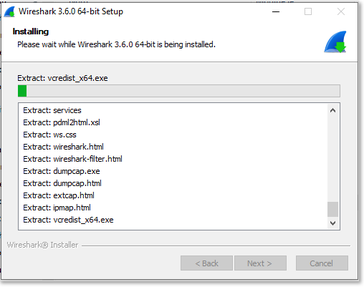
Laisser les cases cochées et terminer l’installation.

<table id="bkmrk--12" style="border-collapse: collapse; width: 100%;"><colgroup><col style="width: 50%;"></col><col style="width: 50%;"></col></colgroup><tbody><tr><td style="border-style: hidden;">[![image.png](https://docs.labs404.fr/uploads/images/gallery/2026-07/scaled-1680-/paYimage-png.png)](https://docs.labs404.fr/uploads/images/gallery/2026-07/scaled-1680-/paYimage-png.png)

</td><td style="border-style: hidden;">[![image.png](https://docs.labs404.fr/uploads/images/gallery/2026-07/scaled-1680-/HGCimage-png.png)](https://docs.labs404.fr/uploads/images/gallery/2026-07/scaled-1680-/HGCimage-png.png)

</td></tr><tr><td style="border-style: hidden;">[![image.png](https://docs.labs404.fr/uploads/images/gallery/2026-07/scaled-1680-/WTVimage-png.png)](https://docs.labs404.fr/uploads/images/gallery/2026-07/scaled-1680-/WTVimage-png.png)

</td><td style="border-style: hidden;">  
</td></tr></tbody></table>

#### <span style="color: rgb(35,111,161);">**2.4 Fin de l'installation**</span>

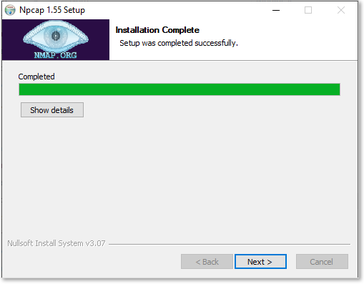
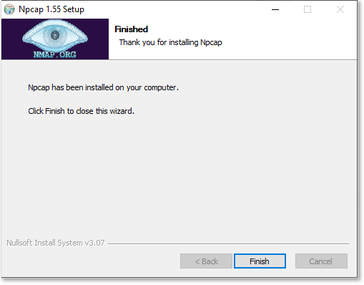
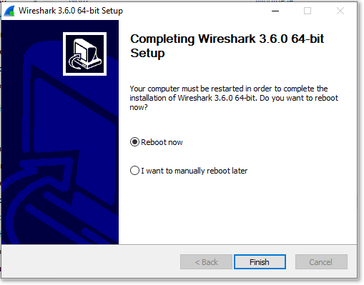
Terminer l’installation.

<table id="bkmrk--13" style="border-collapse: collapse; width: 100%;"><colgroup><col style="width: 50%;"></col><col style="width: 50%;"></col></colgroup><tbody><tr><td style="border-style: hidden;">[![image.png](https://docs.labs404.fr/uploads/images/gallery/2026-07/scaled-1680-/T33image-png.png)](https://docs.labs404.fr/uploads/images/gallery/2026-07/scaled-1680-/T33image-png.png)

</td><td style="border-style: hidden;">[![image.png](https://docs.labs404.fr/uploads/images/gallery/2026-07/scaled-1680-/k9himage-png.png)](https://docs.labs404.fr/uploads/images/gallery/2026-07/scaled-1680-/k9himage-png.png)

</td></tr></tbody></table>

---

### <span style="text-decoration: underline; color: rgb(52,73,94);">**III. Démarrer une capture**</span>

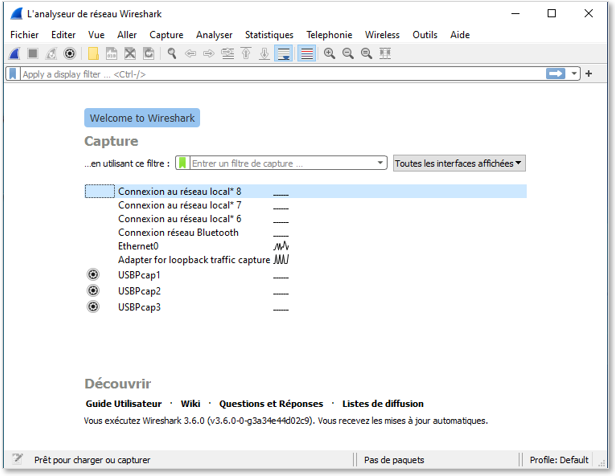
Lancer le programme.

[![image.png](https://docs.labs404.fr/uploads/images/gallery/2026-07/scaled-1680-/hAWimage-png.png)](https://docs.labs404.fr/uploads/images/gallery/2026-07/scaled-1680-/hAWimage-png.png)

Sélectionner l’interface réseau à utiliser.

(ici : Ethernet0)

[![image.png](https://docs.labs404.fr/uploads/images/gallery/2026-07/scaled-1680-/w89image-png.png)](https://docs.labs404.fr/uploads/images/gallery/2026-07/scaled-1680-/w89image-png.png)
La capture se lance et les paquet capturés apparaissent.

[![image.png](https://docs.labs404.fr/uploads/images/gallery/2026-07/scaled-1680-/BUpimage-png.png)](https://docs.labs404.fr/uploads/images/gallery/2026-07/scaled-1680-/BUpimage-png.png)
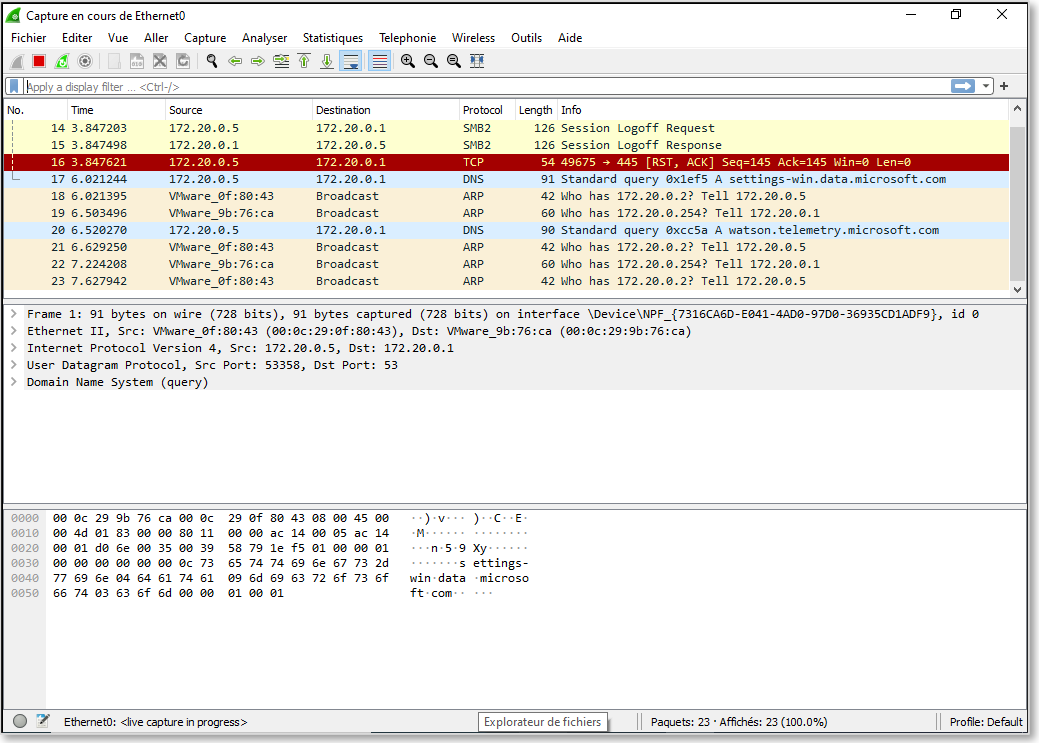
La fenêtre est composée de Trois espaces :

[![image.png](https://docs.labs404.fr/uploads/images/gallery/2026-07/scaled-1680-/ql7image-png.png)](https://docs.labs404.fr/uploads/images/gallery/2026-07/scaled-1680-/ql7image-png.png)
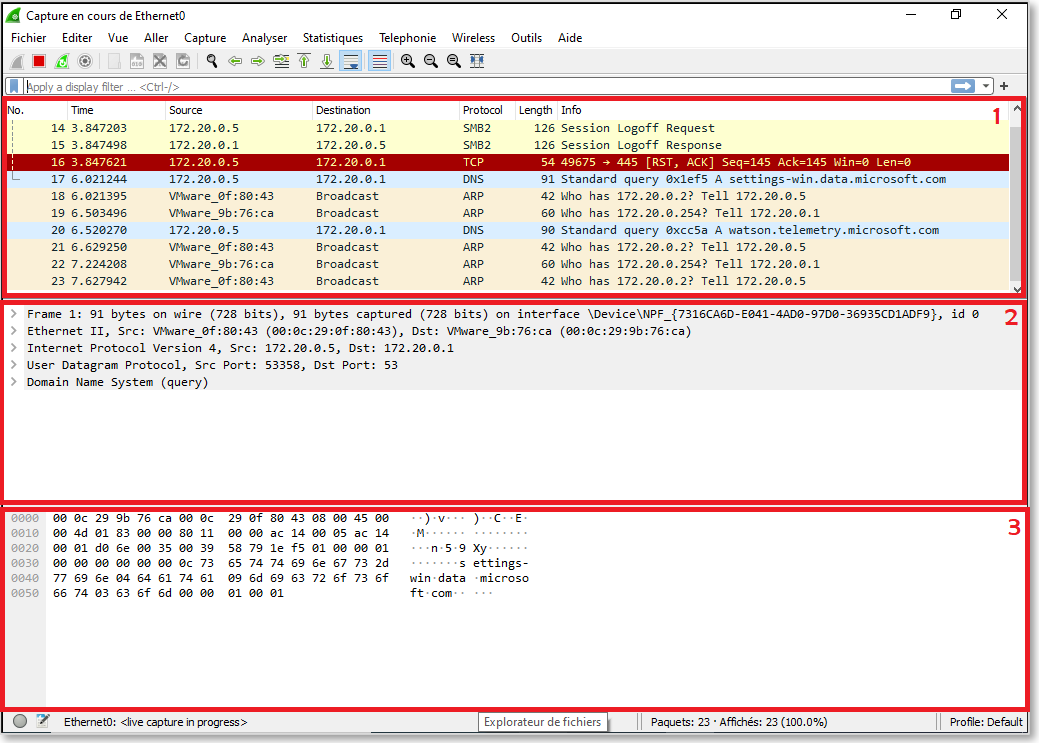
1. Liste des paquets capturés. Par défaut, cela défile en temps réel et ne trie pas les paquets.
2. Contenu de la trame découpée par blocs.
3. Contenu du paquet affiché en hexadécimal et texte.

---

### <span style="text-decoration: underline; color: rgb(52,73,94);">**IV. Utiliser les filtres**</span>

Afin de rendre la capture plus facile et lisible, il est possible de filtrer sur une IP ou un protocole particulier.

[![image.png](https://docs.labs404.fr/uploads/images/gallery/2026-07/scaled-1680-/rsdimage-png.png)](https://docs.labs404.fr/uploads/images/gallery/2026-07/scaled-1680-/rsdimage-png.png)
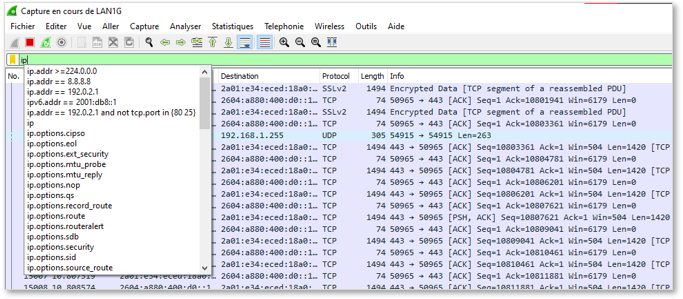
Par exemple :

<table id="bkmrk-ip.src%3D%3D192.168.1.10" style="border-collapse: collapse; width: 100%;"><colgroup><col style="width: 99.8765%;"></col></colgroup><tbody><tr><td class="align-center" style="border-style: hidden;">[![image.png](https://docs.labs404.fr/uploads/images/gallery/2026-07/scaled-1680-/NXJimage-png.png)](https://docs.labs404.fr/uploads/images/gallery/2026-07/scaled-1680-/NXJimage-png.png)

</td></tr><tr><td class="align-center" style="border-style: hidden;">*ip.src==192.168.1.100 permet d’afficher tous les paquets provenant de l’hôte avec l’ip 192.168.1.100*</td></tr></tbody></table>

<table id="bkmrk-tcp.port%3D%3D443-permet" style="border-collapse: collapse; width: 100%; height: 157.667px;"><colgroup><col style="width: 99.8765%;"></col></colgroup><tbody><tr style="height: 128.867px;"><td class="align-center" style="border-style: hidden; height: 128.867px;">[![image.png](https://docs.labs404.fr/uploads/images/gallery/2026-07/scaled-1680-/jqlimage-png.png)](https://docs.labs404.fr/uploads/images/gallery/2026-07/scaled-1680-/jqlimage-png.png)

</td></tr><tr style="height: 28.8px;"><td class="align-center" style="border-style: hidden; height: 28.8px;">*tcp.port==443 Permet d’afficher tout les paquets utilisant le port HTTPS.*</td></tr></tbody></table>

Il est également possible de combiner des filtres avec des opérateurs.

- &amp;&amp; : et
- || : ou
- != : non égal à

Par exemple :

<table id="bkmrk-ip.src%3D%3D192.168.1.10-0" style="border-collapse: collapse; width: 100%; height: 157.667px;"><colgroup><col style="width: 99.8765%;"></col></colgroup><tbody><tr style="height: 128.867px;"><td class="align-center" style="border-style: hidden; height: 128.867px;">[![image.png](https://docs.labs404.fr/uploads/images/gallery/2026-07/scaled-1680-/HvVimage-png.png)](https://docs.labs404.fr/uploads/images/gallery/2026-07/scaled-1680-/HvVimage-png.png)

</td></tr><tr style="height: 28.8px;"><td class="align-center" style="border-style: hidden; height: 28.8px;">*ip.src==192.168.1.100 &amp;&amp; tcp.port==80 Permet d’afficher tout les paquets provenant de 192.168.1.100 sur le port 80.*</td></tr></tbody></table>

<table id="bkmrk-ip.src%3D%3D192.168.1.10-1" style="border-collapse: collapse; width: 100%; height: 157.667px;"><colgroup><col style="width: 99.8765%;"></col></colgroup><tbody><tr style="height: 128.867px;"><td class="align-center" style="border-style: hidden; height: 128.867px;">[![image.png](https://docs.labs404.fr/uploads/images/gallery/2026-07/scaled-1680-/sDFimage-png.png)](https://docs.labs404.fr/uploads/images/gallery/2026-07/scaled-1680-/sDFimage-png.png)

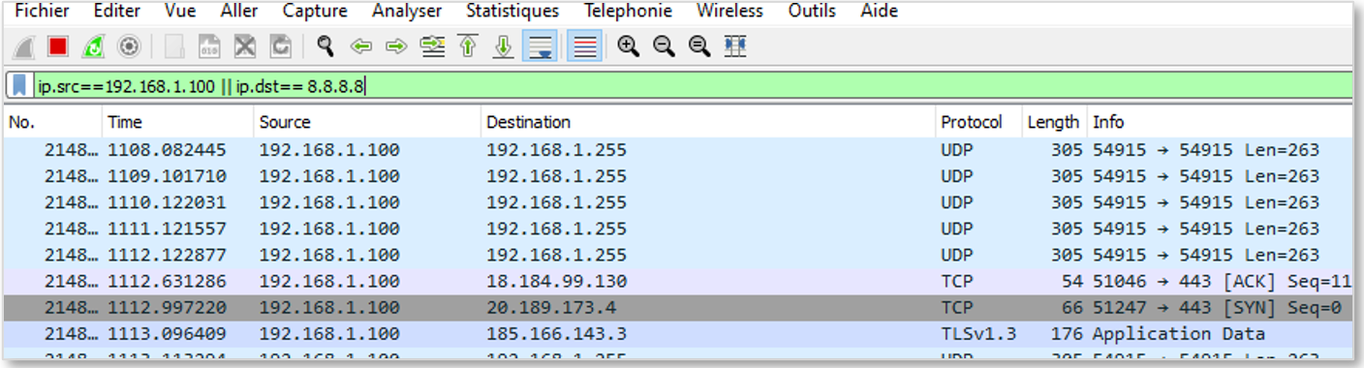
</td></tr><tr style="height: 28.8px;"><td class="align-center" style="border-style: hidden; height: 28.8px;">*ip.src==192.168.1.100 || ip.dst== 8.8.8.8 Permet d’afficher tout le trafic en provenance de 102.168.1.100 OU à destination de 8.8.8.8*</td></tr></tbody></table>

<p class="callout info">Pour plus de filtres : [DisplayFilters](https://wiki.wireshark.org/DisplayFilters)</p>

# Wireshark - Notions avancées

<table id="bkmrk-difficult%C3%A9%2A-%3Cdescrip" style="border-collapse: collapse; width: 100%; height: 46.8px; border-width: 1px; border-style: hidden;"><colgroup><col style="width: 20%;"></col><col style="width: 80%;"></col></colgroup><tbody><tr style="height: 46.8px;"><td style="height: 46.8px; border: 1px groove rgb(52,73,94);">[![Confirmé.png](https://docs.labs404.fr/uploads/images/gallery/2026-07/scaled-1680-/Cfnconfirme-png.png)](https://docs.labs404.fr/uploads/images/gallery/2026-07/scaled-1680-/Cfnconfirme-png.png)</td><td style="height: 46.8px; border-width: 1px; background-color: rgb(236,202,250); vertical-align: top;">Difficulté : Confirmé

Notions : Réseaux, protocoles, analyse de trame.

</td></tr></tbody></table>

---


### <span style="color: rgb(52,73,94);">**<span style="text-decoration: underline;">I.Introduction</span>**</span>

Ce document a pour but de vous apprendre à utiliser les fonctions avancées de wireshark

<p class="callout info">Wireshark peut être téléchargé ici : [Download Wireshark](https://www.wireshark.org/download.html)  
</p>

<p class="callout info">Cette documentation fait suite à : [Wireshark - Installation et utilisation](https://docs.labs404.fr/books/logiciels/page/wireshark-installation-et-utilisation "Wireshark - Installation et utilisation")</p>

<p class="callout danger">Prérequis : Un poste sous Windows 7 minimum, Une carte réseau RJ45 ou une carte wifi.  
</p>

---

### <span style="color: rgb(52,73,94);">**<span style="text-decoration: underline;">II. Informations de capture</span>**</span>

#### <span style="color: rgb(35,111,161);">**2.1 Voir les détails de la capture**</span>  


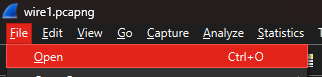
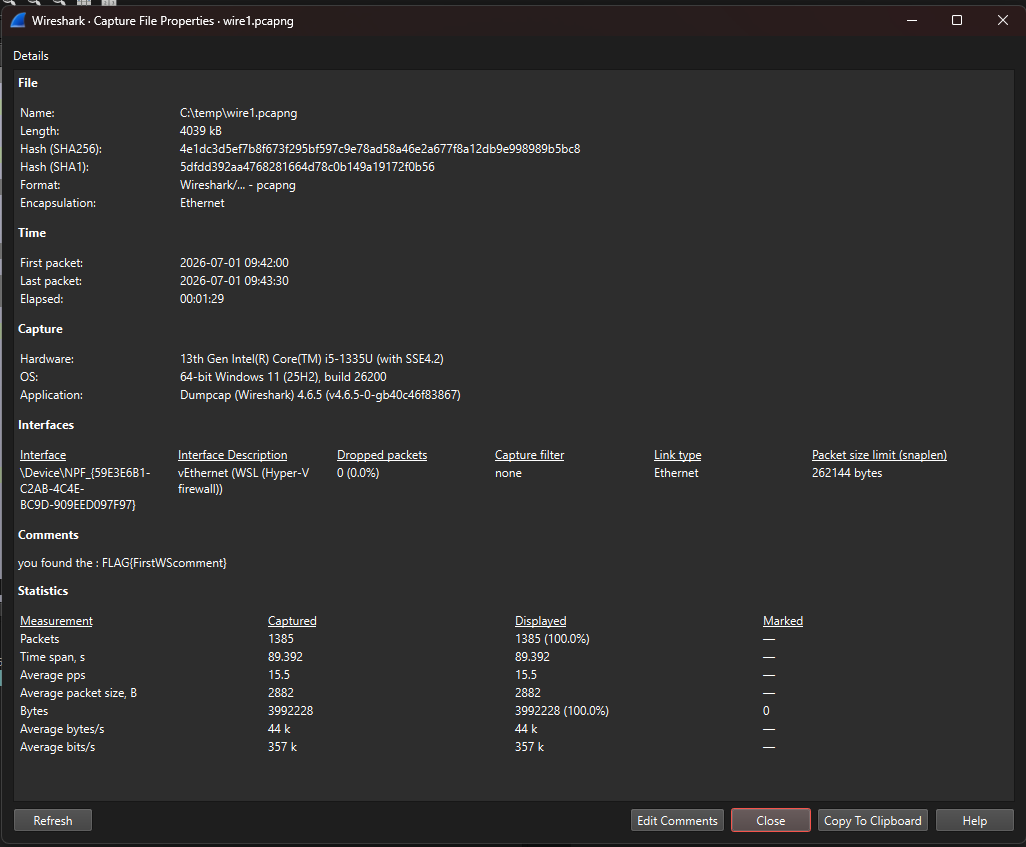
Pour voir les détails d'une capture, ouvrir la capture avec '<span style="color: rgb(132,63,161);">***Fichier --&gt; Ouvrir***</span>'.

[![image.png](https://docs.labs404.fr/uploads/images/gallery/2026-07/scaled-1680-/cKRimage-png.png)](https://docs.labs404.fr/uploads/images/gallery/2026-07/scaled-1680-/cKRimage-png.png)

En bas à gauche, cliquer sur l'icône du fichier de capture.

[![image.png](https://docs.labs404.fr/uploads/images/gallery/2026-07/scaled-1680-/7rlimage-png.png)](https://docs.labs404.fr/uploads/images/gallery/2026-07/scaled-1680-/7rlimage-png.png)
Il est possible d'y trouver les informations de la capture.

[![image.png](https://docs.labs404.fr/uploads/images/gallery/2026-07/scaled-1680-/aTIimage-png.png)](https://docs.labs404.fr/uploads/images/gallery/2026-07/scaled-1680-/aTIimage-png.png)
#### **<span style="color: rgb(35,111,161);">2.2 Voir les résultats de capture</span>**

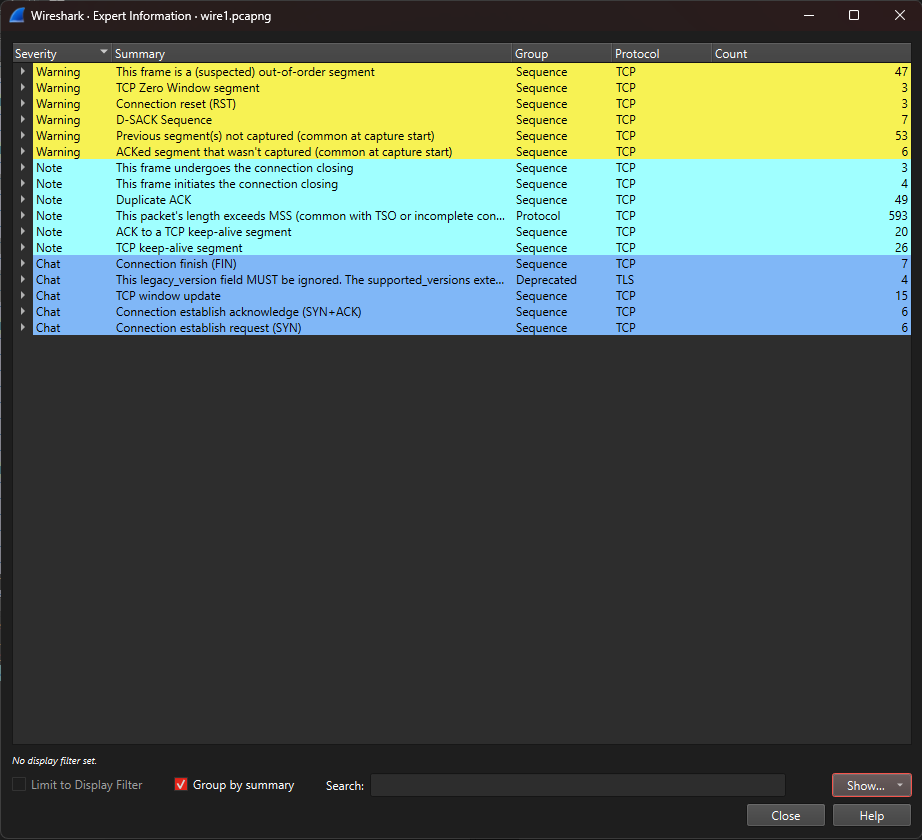
En bas à gauche, cliquer sur l'icône du rond vert.

[![image.png](https://docs.labs404.fr/uploads/images/gallery/2026-07/scaled-1680-/7rlimage-png.png)](https://docs.labs404.fr/uploads/images/gallery/2026-07/scaled-1680-/7rlimage-png.png)

Il est possible de voir les résultats et statistiques de la capture.

[![image.png](https://docs.labs404.fr/uploads/images/gallery/2026-07/scaled-1680-/ssUimage-png.png)](https://docs.labs404.fr/uploads/images/gallery/2026-07/scaled-1680-/ssUimage-png.png)
---

### <span style="color: rgb(52,73,94);">**<span style="text-decoration: underline;">III. Suivre un stream</span>**</span>

#### <span style="color: rgb(35,111,161);">**3.1 Suivre un stream TCP**</span>  


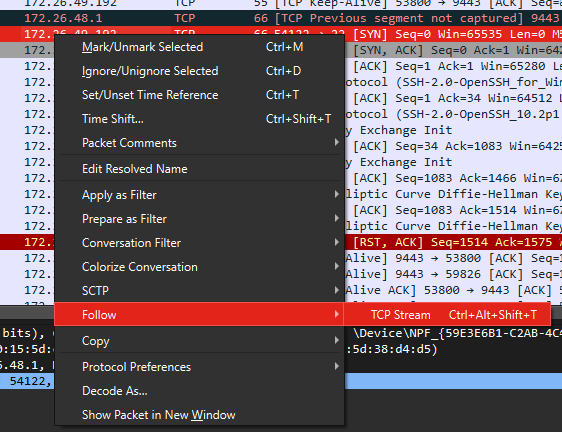
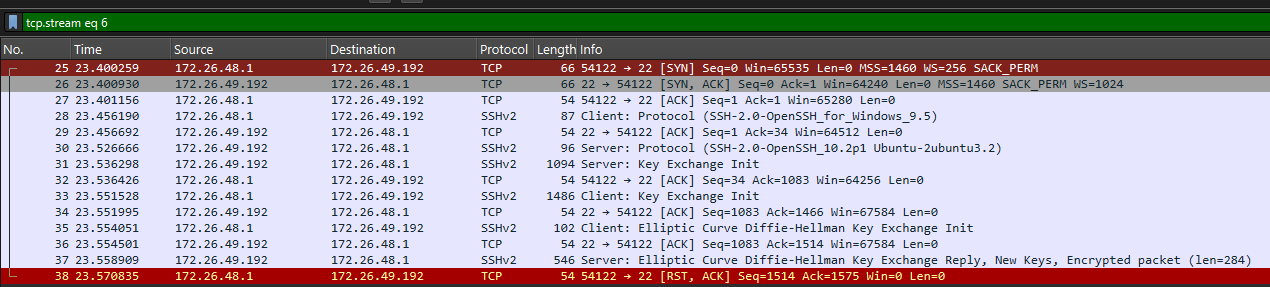
Pour filtrer la vue sur un échange en particulier, clic droit sur l'un des paquets du stream.

[![image.png](https://docs.labs404.fr/uploads/images/gallery/2026-07/scaled-1680-/6MIimage-png.png)](https://docs.labs404.fr/uploads/images/gallery/2026-07/scaled-1680-/6MIimage-png.png)

*ici, par exemple, un flux SSHv2*

*faire un '*<span style="color: rgb(132,63,161);">**clic droit --&gt; Follow --&gt; TCP Stream**</span>*'.*

[![image.png](https://docs.labs404.fr/uploads/images/gallery/2026-07/scaled-1680-/kGUimage-png.png)](https://docs.labs404.fr/uploads/images/gallery/2026-07/scaled-1680-/kGUimage-png.png)

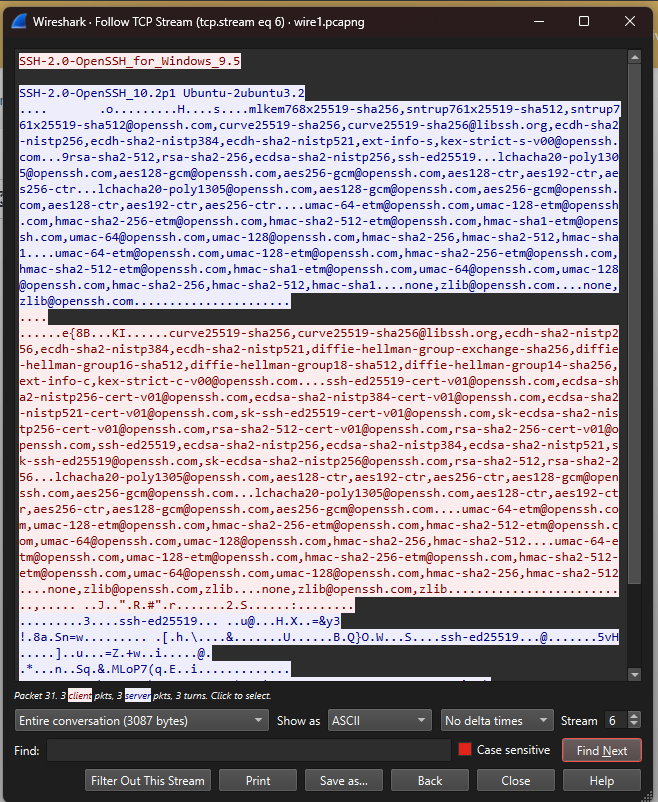
Cela va filtrer uniquement les trames liées à cet échange :

[![image.png](https://docs.labs404.fr/uploads/images/gallery/2026-07/scaled-1680-/QTUimage-png.png)](https://docs.labs404.fr/uploads/images/gallery/2026-07/scaled-1680-/QTUimage-png.png)
Et également afficher une nouvelle fenêtre dans laquelle sera affiché le détail des échanges.

[![image.png](https://docs.labs404.fr/uploads/images/gallery/2026-07/scaled-1680-/Zusimage-png.png)](https://docs.labs404.fr/uploads/images/gallery/2026-07/scaled-1680-/Zusimage-png.png)
#### <span style="color: rgb(35,111,161);">**3.2 Suivre un stream HTTP(s)**</span>

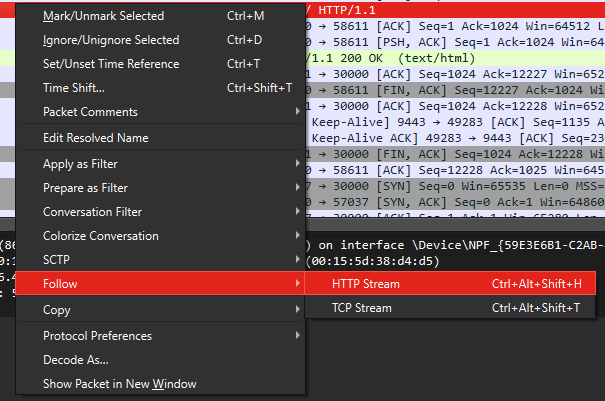
De la même manière il est possible de suivre un stream HTTP ou HTTPS :

*faire un '*<span style="color: rgb(132,63,161);">**clic droit --&gt; Follow --&gt; HTTP Stream**</span>*'.*

[![image.png](https://docs.labs404.fr/uploads/images/gallery/2026-07/scaled-1680-/5rcimage-png.png)](https://docs.labs404.fr/uploads/images/gallery/2026-07/scaled-1680-/5rcimage-png.png)

Cela permettra d'afficher la page récapitulative :

[![image.png](https://docs.labs404.fr/uploads/images/gallery/2026-07/scaled-1680-/OCJimage-png.png)](https://docs.labs404.fr/uploads/images/gallery/2026-07/scaled-1680-/OCJimage-png.png)
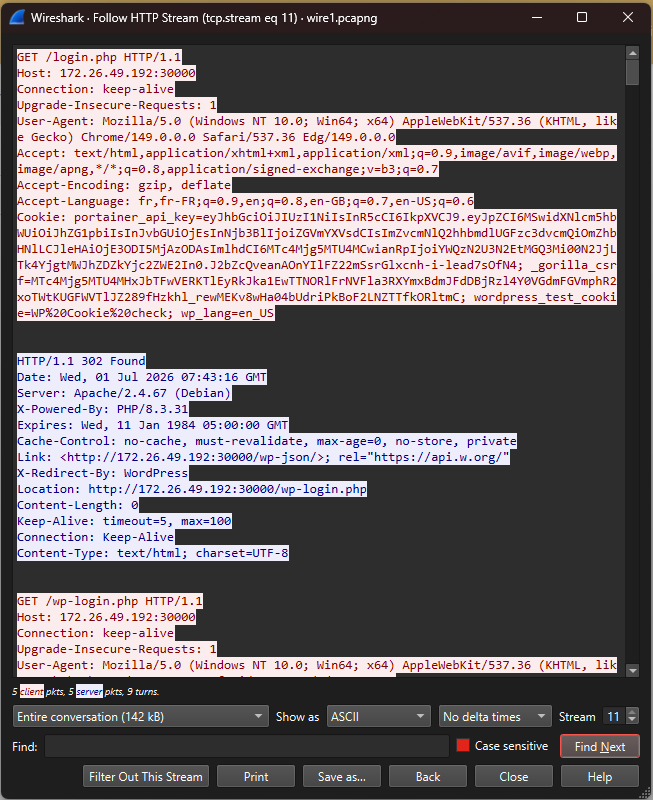
#### <span style="color: rgb(35,111,161);">**3.3 Trouver une information dans le stream**</span>

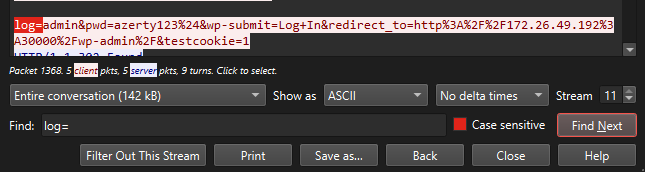
Il est ensuite possible grâce à la barre de recherche en bas de rechercher une information particulière dans le stream.

[![image.png](https://docs.labs404.fr/uploads/images/gallery/2026-07/scaled-1680-/PZpimage-png.png)](https://docs.labs404.fr/uploads/images/gallery/2026-07/scaled-1680-/PZpimage-png.png)
---

### <span style="color: rgb(52,73,94);">**<span style="text-decoration: underline;">IV. Actions sur la liste</span>**</span>

#### <span style="color: rgb(35,111,161);">**4.1 Rechercher une information**</span>

Faire '<span style="color: rgb(132,63,161);">***ctrl+F***</span>' pour activer la barre de recherche :

[![image.png](https://docs.labs404.fr/uploads/images/gallery/2026-07/scaled-1680-/yrdimage-png.png)](https://docs.labs404.fr/uploads/images/gallery/2026-07/scaled-1680-/yrdimage-png.png)

Cette barre permet de rechercher des données dans la liste ou dans le contenu des trames.

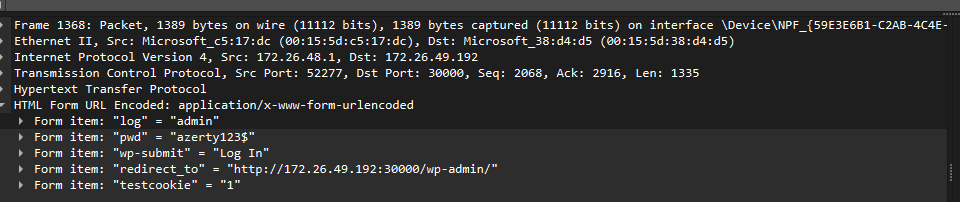
Par exemple avec les critères '<span style="color: rgb(132,63,161);">***Packet Details***</span>' et '<span style="color: rgb(132,63,161);">***String***</span>' puis la valeur '<span style="color: rgb(132,63,161);">***admin***</span>' :

[![image.png](https://docs.labs404.fr/uploads/images/gallery/2026-07/scaled-1680-/V04image-png.png)](https://docs.labs404.fr/uploads/images/gallery/2026-07/scaled-1680-/V04image-png.png)

#### <span style="color: rgb(35,111,161);">**4.2 Appliquer un filtre dynamique**</span>

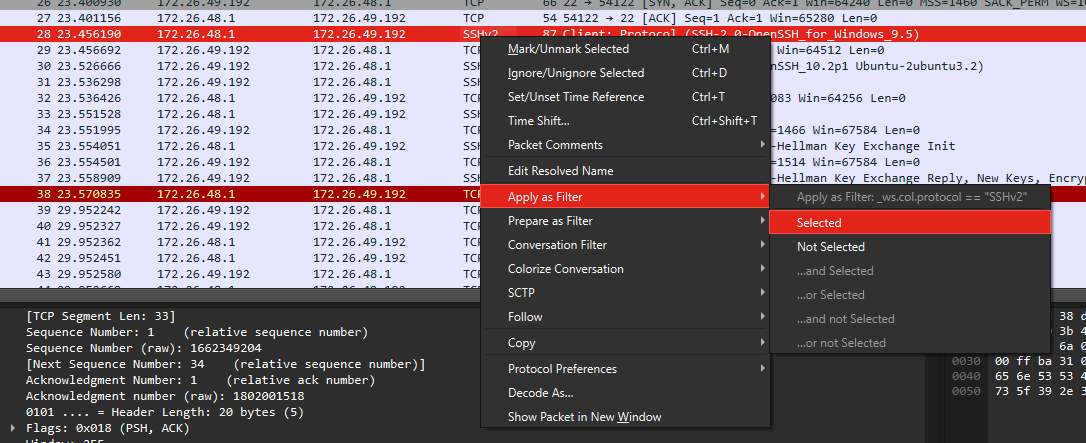
Pour appliquer un filtre dynamique, il est possible de faire un clic droit sur l'une des informations disponible ( ip, port, protocole, etc... ) et de faire un '<span style="color: rgb(132,63,161);">***clic droit --&gt; Apply as Filter --&gt; Selected***</span>' pour appliquer ce filtre.

[![image.png](https://docs.labs404.fr/uploads/images/gallery/2026-07/scaled-1680-/mu2image-png.png)](https://docs.labs404.fr/uploads/images/gallery/2026-07/scaled-1680-/mu2image-png.png)

#### <span style="color: rgb(35,111,161);">**4.3 Afficher / Exporter des données**</span>

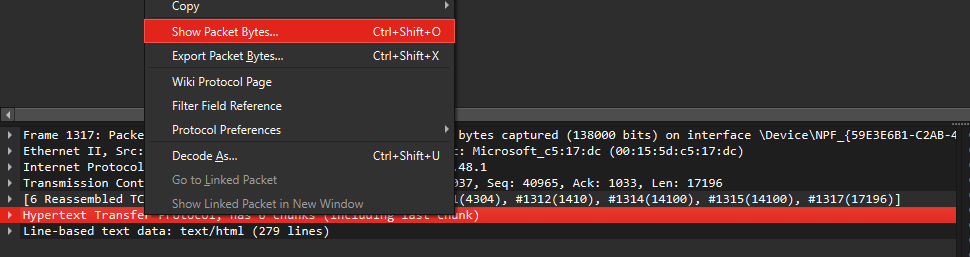
Cliquer sur une trame, puis sur un morceau de trame, il est possible d'afficher ou d'exporter la donnée contenue.

Faire un '<span style="color: rgb(132,63,161);">***clic droit --&gt; Show Packet Bytes***</span>' pour afficher le contenu.

Si il s'agit d'un contenu spécifique (page web, image, email, fichier), faire un '<span style="color: rgb(132,63,161);">***clic droit --&gt; Export Packet Bytes***</span>' Pour le sauvegarder au bon format.

[![image.png](https://docs.labs404.fr/uploads/images/gallery/2026-07/scaled-1680-/3S3image-png.png)](https://docs.labs404.fr/uploads/images/gallery/2026-07/scaled-1680-/3S3image-png.png)

# Wireshark - Déchiffrer trafic https

<table id="bkmrk-difficult%C3%A9%2A-%3Cdescrip" style="border-collapse: collapse; width: 100%; height: 46.8px; border-width: 1px; border-style: hidden;"><colgroup><col style="width: 20%;"></col><col style="width: 80%;"></col></colgroup><tbody><tr style="height: 46.8px;"><td style="height: 46.8px; border: 1px groove rgb(52,73,94);">[![image.png](https://docs.labs404.fr/uploads/images/gallery/2026-07/scaled-1680-/Cfnconfirme-png.png)](https://docs.labs404.fr/uploads/images/gallery/2026-07/scaled-1680-/Cfnconfirme-png.png)  
</td><td style="height: 46.8px; border-width: 1px; background-color: rgb(236,202,250); vertical-align: top;">Difficulté : Confirmé

Notions : TLS, chiffrement, capture de paquet.

</td></tr></tbody></table>

---

### <span style="color: rgb(52,73,94);">**<span style="text-decoration: underline;">I. Introduction</span>**</span>

Cette procédure vise à expliquer comment déchiffrer du traffic https capturé avec wireshark.

---

### <span style="color: rgb(52,73,94);">**<span style="text-decoration: underline;">II. Préparation</span>**</span>

Afin de déchiffrer le trafic HTTPS, il faudra au préalable disposer des clés qui ont été négociées lors du handshake.

Les navigateurs basés sur Chrome / Chromium et firefox peuvent utiliser une variable d’environnement afin de logguer les clés qui ont été générée lors des Handshakes.

<details id="bkmrk-sur-windows-%28gui%29-ou"><summary>Sur windows (GUI)</summary>

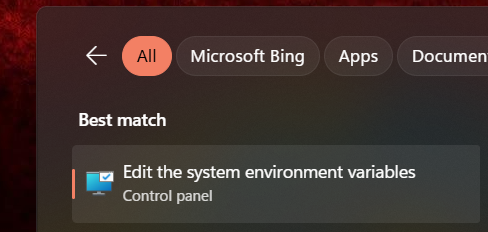
Ouvrir le menu démarrer et rechercher '<span style="color: rgb(132,63,161);">***ENV***</span>'.

[![image.png](https://docs.labs404.fr/uploads/images/gallery/2026-07/scaled-1680-/5eWimage-png.png)](https://docs.labs404.fr/uploads/images/gallery/2026-07/scaled-1680-/5eWimage-png.png)

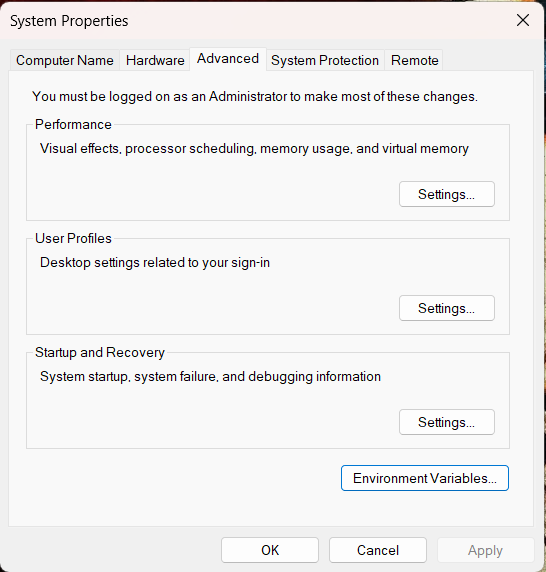
Cliquer sur '<span style="color: rgb(132,63,161);">***Environment variables...***</span>'

[![image.png](https://docs.labs404.fr/uploads/images/gallery/2026-07/scaled-1680-/i2cimage-png.png)](https://docs.labs404.fr/uploads/images/gallery/2026-07/scaled-1680-/i2cimage-png.png)

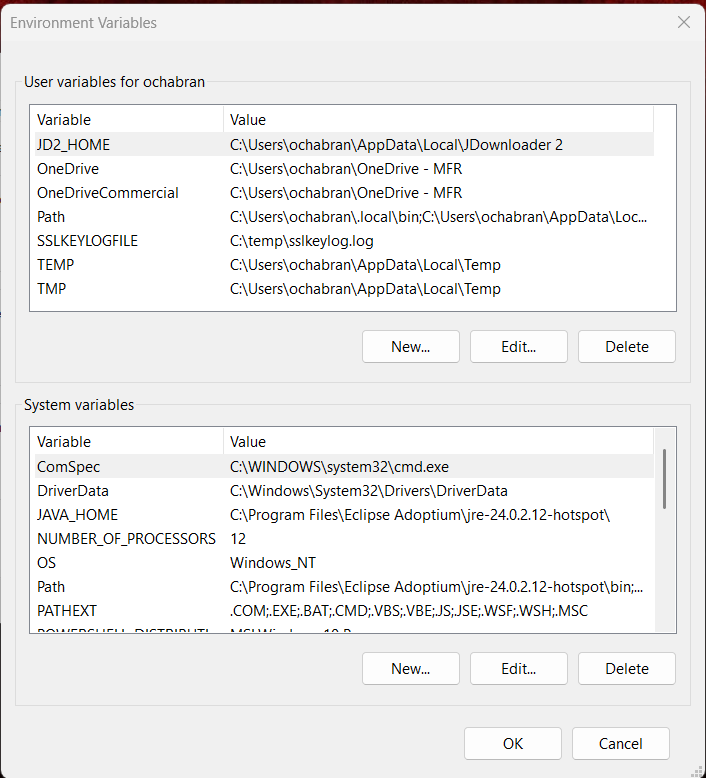
Ajouter une nouvelle variable d’environnement **utilisateur** en cliquant sur '<span style="color: rgb(132,63,161);">***New***</span>'.

[![image.png](https://docs.labs404.fr/uploads/images/gallery/2026-07/scaled-1680-/wa6image-png.png)](https://docs.labs404.fr/uploads/images/gallery/2026-07/scaled-1680-/wa6image-png.png)

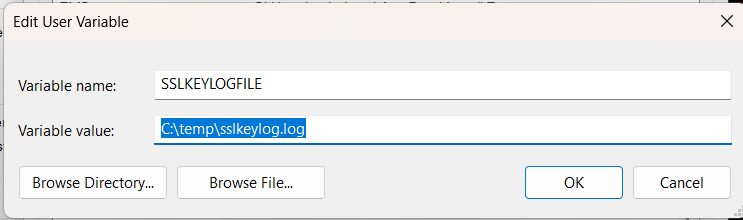
Créer la variable suivante et valider en cliquant sur '<span style="color: rgb(132,63,161);">***OK***</span>'.

<p class="callout warning">**Attention** : Le fichier spécifié doit exister.</p>

[![image.png](https://docs.labs404.fr/uploads/images/gallery/2026-07/scaled-1680-/gYVimage-png.png)](https://docs.labs404.fr/uploads/images/gallery/2026-07/scaled-1680-/gYVimage-png.png)

La variable sera prise en compte à la prochaine ouverture de session.

</details><details id="bkmrk-sur-linux-%28cli%29-atte"><summary>Sur linux (CLI)</summary>

<p class="callout warning">**Attention** : Le fichier spécifié doit exister.</p>

Pour ajouter la variable temporairement :

```bash
export SSLKEYLOGFILE=/chemin/vers/le/fichier
```

Pour l'ajouter de façon permanente, il faut la déclarer dans le fichier <span style="color: rgb(132,63,161);">***~/.bashrc***</span> de l'utilisateur.

```
echo 'export SSLKEYLOGFILE=/chemin/vers/le/fichier' >> ~/.bashrc
```

Elle prendra effet à la prochaine ouverture de session.

</details>Après réouverture de session, il suffira de lancer la capture wireshark et de lancer le navigateur.

A la fin de la capture, l'enregistrer.

---

### <span style="color: rgb(52,73,94);">***III. Déchiffrement des trames***</span>

Ouvrir le fichier de capture. Celui-ci est pour lors chiffré.

[![image.png](https://docs.labs404.fr/uploads/images/gallery/2026-07/scaled-1680-/fPbimage-png.png)](https://docs.labs404.fr/uploads/images/gallery/2026-07/scaled-1680-/fPbimage-png.png)

[![image.png](https://docs.labs404.fr/uploads/images/gallery/2026-07/scaled-1680-/4ITimage-png.png)](https://docs.labs404.fr/uploads/images/gallery/2026-07/scaled-1680-/4ITimage-png.png)

Pour le déchiffrer, il faut appliquer le fichier de clés récupérées lors des handshakes.

Pour cela, faire : '<span style="color: rgb(132,63,161);">***Edit --&gt; Preferences...***</span>'.

[![image.png](https://docs.labs404.fr/uploads/images/gallery/2026-07/scaled-1680-/6mMimage-png.png)](https://docs.labs404.fr/uploads/images/gallery/2026-07/scaled-1680-/6mMimage-png.png)

Dans la nouvelle fenêtre, se déplacer dans '<span style="color: rgb(132,63,161);">***protocoles --&gt; TLS***</span>' puis entrer le chemin vers le fichier de capture dans le champ '<span style="color: rgb(132,63,161);">***(Pre)-Master-Secret log filename***</span>'.

[![image.png](https://docs.labs404.fr/uploads/images/gallery/2026-07/scaled-1680-/2Biimage-png.png)](https://docs.labs404.fr/uploads/images/gallery/2026-07/scaled-1680-/2Biimage-png.png)

Valider en cliquant sur '<span style="color: rgb(132,63,161);">***Apply***</span>'.

Cela aura pour effet de déchiffrer et d'ajouter tout le trafic qui était auparavant encapsulé dans la couche de présentation.

[![image.png](https://docs.labs404.fr/uploads/images/gallery/2026-07/scaled-1680-/sBNimage-png.png)](https://docs.labs404.fr/uploads/images/gallery/2026-07/scaled-1680-/sBNimage-png.png)

<p class="callout success">**Astuce** : Cette méthode peut également servir sur d'autres protocoles comme ssh par exemple mais peut nécessiter des variantes.</p>