',[System.EnvironmentVariableTarget]::Machine)
```
---
Pour vérifier les variables d'environnement existantes : "***Ordinateur, Clic droit --> propriétés --> Avancées***"
| [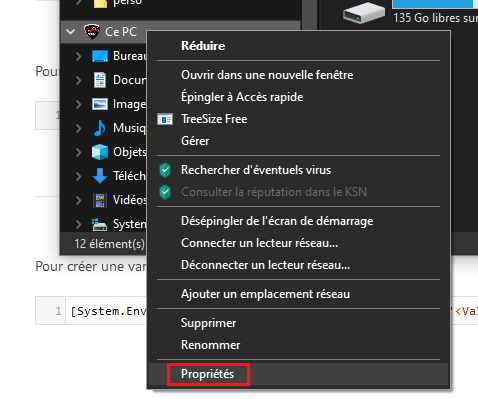](https://docs.labs404.fr/uploads/images/gallery/2026-07/scaled-1680-/uAfimage-png.png)
| [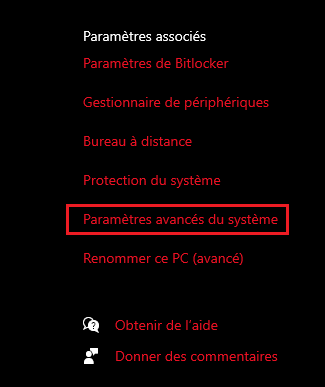](https://docs.labs404.fr/uploads/images/gallery/2026-07/scaled-1680-/MJrimage-png.png)
| [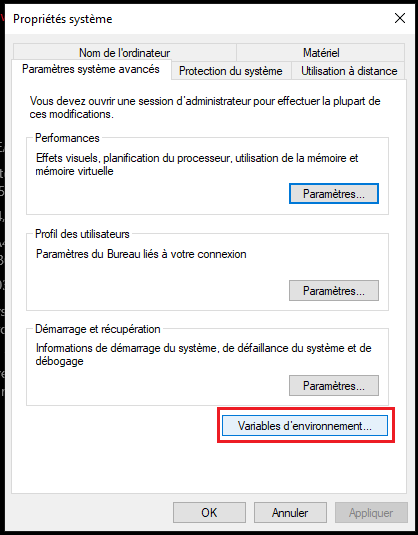](https://docs.labs404.fr/uploads/images/gallery/2026-07/scaled-1680-/Mmzimage-png.png)
|
[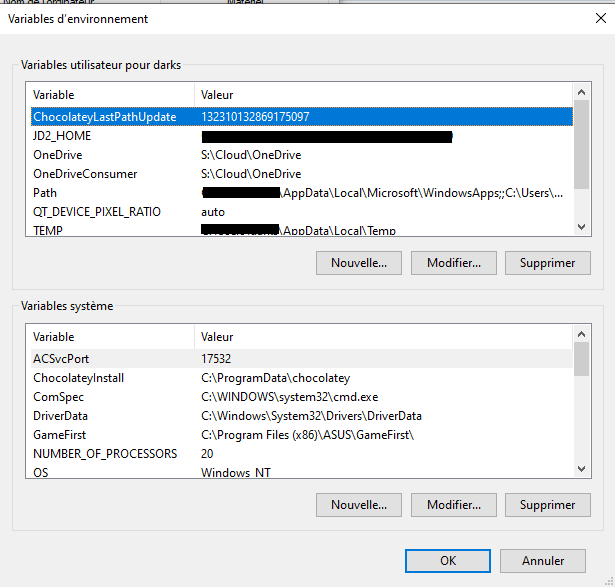](https://docs.labs404.fr/uploads/images/gallery/2026-07/scaled-1680-/Va4image-png.png)
---
# Powershell - Fonctions utiles
Get-AdminRights
```powershell
function Get-AdminRights(){#Check if script is launched with admin rights, else relaunch it with good rights.
<#Function of VOID type. No parameters necessary.
you can comment or uncomment the lines marcked with "#!" by removing "#!" to adapt the behavior #>
#Get the identity of the current account based on its admin group membreship
$IsAdmin=[Security.Principal.WindowsIdentity]::GetCurrent().Groups -contains 'S-1-5-32-544'
#Is identity of current user member of local admin ?
if ($IsAdmin -eq $false){#if no
#Write event in windows log
#!Write-EventLog -LogName Application -Source 'Automation Engine' -EntryType Warning -EventId 201 -Message "Script not launched with admin rights."
#Write event in console
Write-Host "Script not launched with admin privileges..." -ForegroundColor Red
# OR display an arror popup
#!$result = New-Object -ComObject Wscript.Shell -ErrorAction Stop
#!$result.Popup("Script Not launched with admin rights",0,"Warning",48+0)
#Relaunch as admin
#!Start-Process powershell.exe -Verb RunAs -ArgumentList ('-noprofile -noexit -file "{0}" -elevated' -f ($myinvocation.MyCommand.Definition))
# OR pause and exit
pause
exit
}
}
```
Get-FileLocation
```
function Get-FileLocation(){#Browse on computer and return the path of file.
<#Function of VOID type. No parameters necessary.
use it in a STRING variable to get the selected path when clicking "OK"#>
#Create browse window.
$FileBrowser = New-Object System.Windows.Forms.OpenFileDialog -Property @{
Multiselect = $false # Multiple files can be chosen
Filter = 'Exports (*.csv)|*.csv' # Specified file types
}
#call the browse window
[void]$FileBrowser.ShowDialog()
# Is there file(s) selected by user ?
If($FileBrowser.FileNames -like "*\*") {#If yes,
#Lists selected files (optional)
$FileBrowser.FileName
}else{#If no,
#Cancel the operation
Write-Host "Cancelled by user"
}
}
```
Get-FolderLocation
```powershell
function Get-FolderLocation(){#Browse on computer and return the path of folder.
<#Function of VOID type. No parameters necessary.
use it in a STRING variable to get the selected path when clicking "OK"#>
#Create the browse window
[Reflection.Assembly]::LoadWithPartialName("System.Windows.Forms") | Out-Null
[System.Windows.Forms.Application]::EnableVisualStyles()
#Create the window elements
$browse = New-Object System.Windows.Forms.FolderBrowserDialog
$browse.RootFolder = [System.Environment+SpecialFolder]'MyComputer'
$browse.ShowNewFolderButton = $false
$browse.Description = "Choose a directory"
#While nothing is clicked, display the window
while($result -ne "Cancel" -and $browse.ShowDialog() -ne "OK")
{
$result = [System.Windows.Forms.MessageBox]::Show("You clicked Cancel. Try again or exit script?", "Choose a directory", [System.Windows.Forms.MessageBoxButtons]::RetryCancel)
}
if($result -ne "Cancel")
{
$browse.SelectedPath
$browse.Dispose()
}
}
```
New-LogSource
```powershell
function New-LogSource([string]$LogSourceName){
<# Function of VOID Type. Take a STRING in entry containing the Log Source Name
This function will check if the source already exist and create it if not (require administative rights)
#>
#Get the Log source events
Get-EventLog -LogName Application -Source $LogSourceName -ErrorAction SilentlyContinue | Format-Table
#Is previous command succesfull ?
if ($? -eq $false){#if no, Log source does'nt exist
#Say log source currently not exist
Write-Host "The logsource $LogSourceName does'nt exist. It will be created..." -ForegroundColor Yellow
#Create the log source
[System.Diagnostics.EventLog]::CreateEventSource($LogSourceName, "Application")
#Spawn a log entry saying that the log source is now created
Write-Host "Log source $LogSourceName Created Successfully." -ForegroundColor Green
#Say in the logs that the log source is now created
Write-EventLog -LogName Application -Source $LogSourceName -EntryType Information -EventId 9999 -Message "Log source $LogSourceName Created Successfully."
}else{#if yes, log source exist
#Just say that the source already exist
Write-Host "Log source $LogSourceName already exist. It will not be created again." -ForegroundColor Yellow
}
}
```
New-Password
```powershell
function New-Password([int]$lenght){#Generate a password composed by A-Z, a-z, 0-9 & special caracters.
<# Function of regular type
take INT, mandatory : lenght of the password to be generated
function return STRING : password generated#>
#Generate a random caracter untill the full password is generated
do {
$fctPassword = -join((33..47) + (48..57) + (65..90) + (97..122) + (58..64) | Get-Random -Count $lenght | Foreach-Object {[char]$_})
}
while (!(($fctPassword -cmatch '[a-z]') -and ($fctPassword -cmatch '[A-Z]') -and ($fctPassword -match '\d') -and ($fctPassword -match "[^\w]")))
#Resturn the password
return $fctPassword
}
```
Par convention, nous utiliserons "PSAutomationEngine" comme nom de source.
Créer une source d'évènements (requiert les droits admin) :
```powershell
[System.Diagnostics.EventLog]::CreateEventSource("PSAutomationEngine", "Application")
```
La première valeur est le nom de la source.
La seconde valeur est le journal dans lequel enregistrer la source.
Les valeurs possibles sont :
- Application
- Security
- Setup
- System
---
Récupérer les journaux générés par la source :
```powershell
Get-EventLog -LogName "Application" -Source "PSAutomationEngine"
```
La première valeur est le nom du journal.
La seconde valeur est le nom de la source.
---
Créer un évènement :
```powershell
[System.Diagnostics.EventLog]::WriteEntry("PSAutomationEngine","This is a test entry","information",9)
```
La première valeur est le nom de la source.
La seconde valeur est le message de l'évènement.
La troisième valeur est le type d'évènement.
Les différentes valeurs possibles sont :
- information
- warning
- error
La quatrième valeur est le code d'évènement.
Voir : [Powershell - Matrice des codes d'états](https://docs.labs404.fr/books/normalisation/page/powershell-matrice-des-codes-detats "Powershell - Matrice des codes d'états")
[](https://docs.labs404.fr/uploads/images/gallery/2026-07/scaled-1680-/6xNimage-png.png)
---
Supprimer une source (requiert les droits admin) :
```powershell
[System.Diagnostics.EventLog]::DeleteEventSource("PSAutomationEngine")
```
La première valeur est le nom de la source.
# Powershell - Stocker un mot de passe
Pour récupérer le mot de passe et le stocker dans un fichier :
```powershell
[string]$DestFile="$env:USERPROFILE\Documents\password.secret"
read-host "Enter Password" -AsSecureString | ConvertFrom-SecureString | Out-File $DestFile
```
---
Pour utiliser le mot de passe en clair :
```powershell
[string]$EncryptedPasswordFile="$env:USERPROFILE\Documents\password.secret"
$PasswordSecureString=ConvertTo-Securestring (Get-content $EncryptedPasswordFile)
$PlainTextPassword = [System.Runtime.InteropServices.Marshal]::PtrToStringBSTR([System.Runtime.InteropServices.Marshal]::SecureStringToBSTR($PasswordSecureString))
```
---
Pour utiliser le mot de passe dans un objet credential :
```powershell
[string]$EncryptedPasswordFile="$env:USERPROFILE\Documents\password.secret"
[string]$Username="MyUserName"
$PasswordSecureString=ConvertTo-Securestring (Get-content $EncryptedPasswordFile)
$credentials=New-object System.Management.Automation.PSCredential ($Username, $PasswordSecureString)
```
# Powershell - Secure winRM
#### **I. Paramétrage du service**
Vérifier les listener :
```powershell
winrm e winrm/config/listener
```
Vérifier l'état de winRM :
```
winrm get winrm/config
```
#### **II. Paramétrage trusted host**
Lister les TrustedHosts :
```powershell
Get-Item WSMan:\localhost\Client\TrustedHosts | Select-Object Value | Format-Table
```
Ajouter le host dans les TrustedHosts :
```powershell
Set-Item WSMan:\localhost\Client\TrustedHosts -Value ' ou *'
```
#### **III. Configuration Firewall**
Ajouter une règle autorisant winRM :
```powershell
New-NetFirewallRule -DisplayName "Windows Remote Management (HTTP-In)" -Profile Domain -Direction Inbound -Action Allow -RemoteAddress ' or CIDR network' -Protocol TCP -LocalPort 5986
```
# Powershell - Template
```powershell
<############################################################################
# Title : #
# Version : #
# Author : #
# For : #
# Last change : #
# Description : #
# Require : #
# #
# Distributed under CC-BY-NC Licence #
############################################################################>
<# changelog
V0.1 :
- ...
V0.2 :
- ...
#>
#region ---------- Header ----------
#Add-Type -AssemblyName system.windows.forms
#Add-Type -AssemblyName system.drawing
#Add-Type -AssemblyName System.XML
#Add-Type -AssemblyName PresentationFrameworkion
#endregion ------- Header ----------
#region --------- Arguments ---------
param(
#keep this parameter as it can call the Help page for your script
[Parameter(Mandatory=$false)][switch]$Help,
#insert additionals parameters here
)
#endregion ------ Arguments ---------
#region ----------- Help ------------
if($help){
Write-Host "
"
exit
}
#endregion -------- Help ------------
#region ----------- Title -----------
[String]$AppName="" # Report application Name here
[String]$Version="" # Report application Version Here
[string]$Title=$AppName+" V. "+$Version
$host.UI.RawUI.WindowTitle = $Title
#endregion -------- Title -----------
#region ---------- Classes ----------
#endregion ------- Classes ----------
#region --------- Variables ---------
#endregion ------ Variables ---------
#region --------- Functions ---------
#endregion ------ Functions ---------
#region ------------ GUI ------------
if (!$NoGUI){}
#endregion --------- GUI ------------
#region ----------- Script ----------
#endregion -------- Script ----------
```
# Powershell - ressources microsoft
Verbes approuvés :
[Approved Verbs for PowerShell Commands - PowerShell | Microsoft Learn](https://learn.microsoft.com/en-us/powershell/scripting/developer/cmdlet/approved-verbs-for-windows-powershell-commands?view=powershell-7.6)