# WindowsAdminCenter - Installation

<table id="bkmrk-difficult%C3%A9%2A-%3Cdescrip" style="border-collapse: collapse; width: 100%; height: 46.8px; border-width: 1px; border-style: hidden;"><colgroup><col style="width: 20%;"></col><col style="width: 80%;"></col></colgroup><tbody><tr style="height: 46.8px;"><td style="height: 46.8px; border: 1px groove rgb(52,73,94);">[![image.png](https://docs.labs404.fr/uploads/images/gallery/2026-07/scaled-1680-/kcDnovice-png.png)](https://docs.labs404.fr/uploads/images/gallery/2026-07/scaled-1680-/kcDnovice-png.png)  
</td><td style="height: 46.8px; border-width: 1px; background-color: rgb(236,202,250); vertical-align: top;">Difficulté : Novice

Notions : Administration center, Windows, Service web.

</td></tr></tbody></table>

---

### <span style="color: rgb(52,73,94);">**<span style="text-decoration: underline;">I. Introduction</span>**</span>

Cette procédure vise à décrire le processus d'installation de Windows Admin Center sur un serveur "On Premises".

<p class="callout danger">**Prérequis** : Un certificat TLS doit avoir été généré préalablement et placé sur le serveur dans le magasin "Web Hosting" pour l'utilisation avec un certificat externe. Sinon, possibilité d'utiliser un certificat auto-signé lors de l'installation.</p>

---

### <span style="color: rgb(52,73,94);">**<span style="text-decoration: underline;">II. Installation</span>**</span>

Télécharger Windows Admin Center : <span style="color: rgb(52,73,94);">**<span style="text-decoration: underline;">[Windows Admin Center | Centre d’évaluation Microsoft](https://www.microsoft.com/fr-fr/evalcenter/evaluate-windows-admin-center)</span>**</span>

Lancer l'installation.

[![image.png](https://docs.labs404.fr/uploads/images/gallery/2026-07/scaled-1680-/74Timage-png.png)](https://docs.labs404.fr/uploads/images/gallery/2026-07/scaled-1680-/74Timage-png.png)

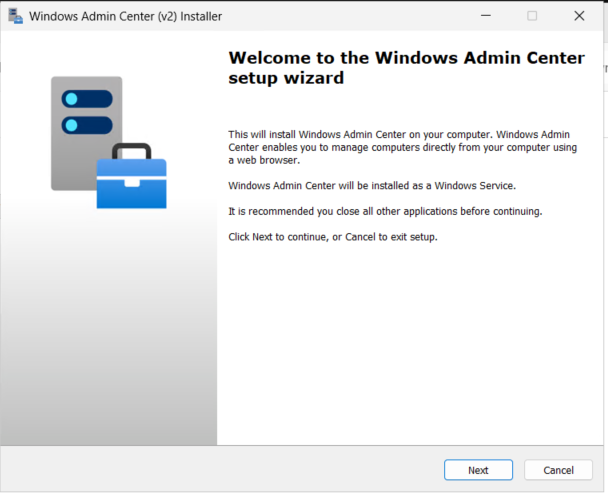
Sur la première page, juste faire '<span style="color: rgb(132,63,161);">***Next***</span>'.

[![image.png](https://docs.labs404.fr/uploads/images/gallery/2026-07/scaled-1680-/MWEimage-png.png)](https://docs.labs404.fr/uploads/images/gallery/2026-07/scaled-1680-/MWEimage-png.png)

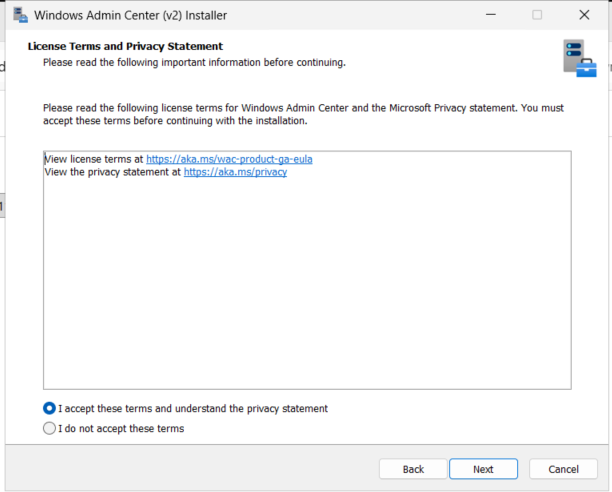
Cocher '<span style="color: rgb(132,63,161);">***I accept these terms and understand the privacy statement***</span>' puis faire '<span style="color: rgb(132,63,161);">***Next***</span>'.

[![image.png](https://docs.labs404.fr/uploads/images/gallery/2026-07/scaled-1680-/T0simage-png.png)](https://docs.labs404.fr/uploads/images/gallery/2026-07/scaled-1680-/T0simage-png.png)

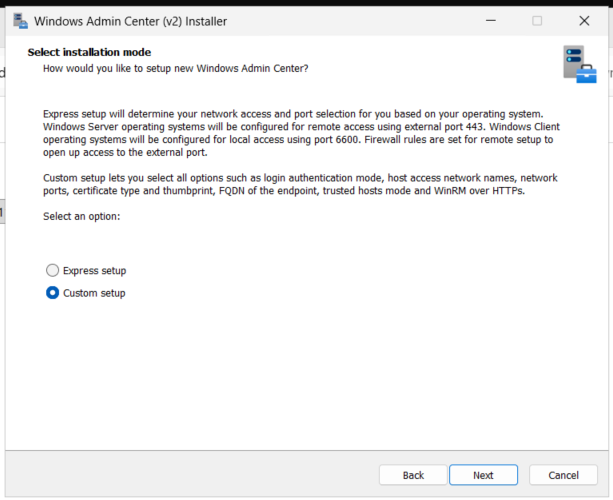
Choisir '<span style="color: rgb(132,63,161);">***Custom setup***</span>' puis faire '<span style="color: rgb(132,63,161);">***Next***</span>'.

[![image.png](https://docs.labs404.fr/uploads/images/gallery/2026-07/scaled-1680-/VXPimage-png.png)](https://docs.labs404.fr/uploads/images/gallery/2026-07/scaled-1680-/VXPimage-png.png)

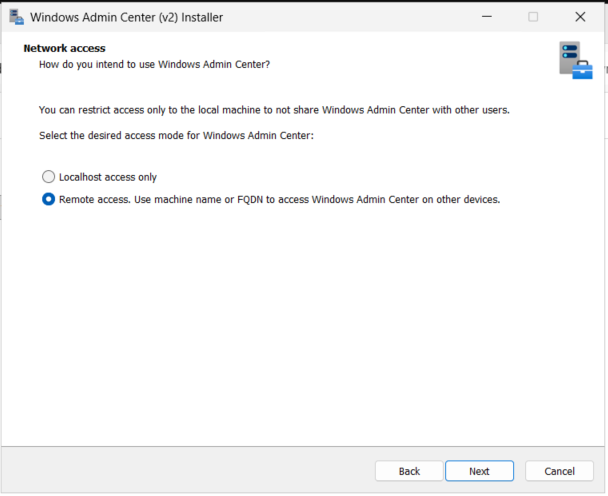
Si il s'agit d'un serveur stronghold qui sera utilisé à distance, cocher '<span style="color: rgb(132,63,161);">***Remote access. Use machine name or FQDN to access Windows Admin Center on other devices***</span>'. Sinon, laisse par défaut. Puis faire '<span style="color: rgb(132,63,161);">***Next***</span>'.

[![image.png](https://docs.labs404.fr/uploads/images/gallery/2026-07/scaled-1680-/7vvimage-png.png)](https://docs.labs404.fr/uploads/images/gallery/2026-07/scaled-1680-/7vvimage-png.png)

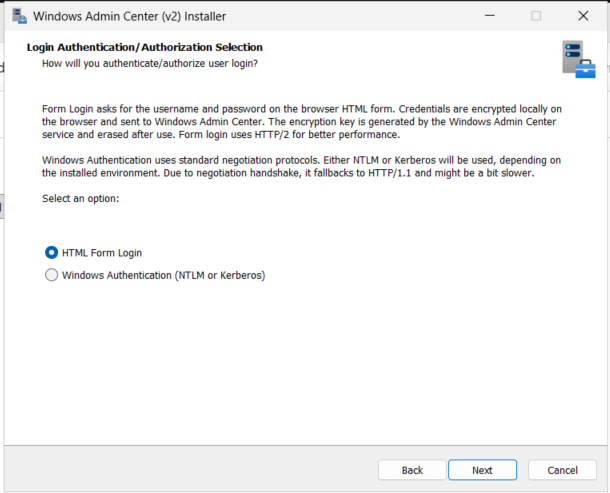
Garder l'option '<span style="color: rgb(132,63,161);">***HTML for login***</span>'. Puis faire '<span style="color: rgb(132,63,161);">***Next***</span>'.

[![image.png](https://docs.labs404.fr/uploads/images/gallery/2026-07/scaled-1680-/7Y1image-png.png)](https://docs.labs404.fr/uploads/images/gallery/2026-07/scaled-1680-/7Y1image-png.png)

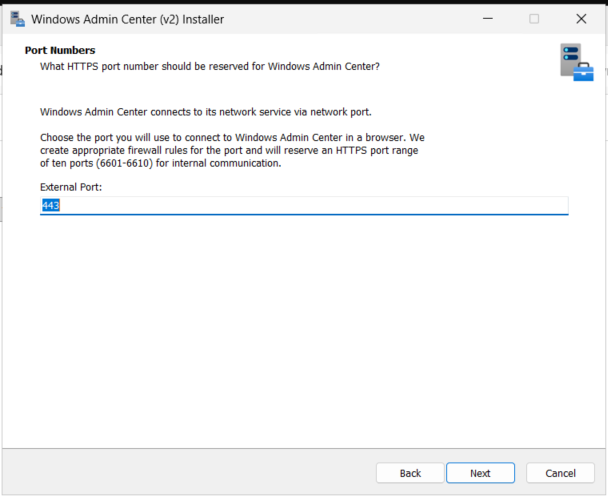
Laisser le port HTTPS par défaut. Puis faire '<span style="color: rgb(132,63,161);">***Next***</span>'.

[![image.png](https://docs.labs404.fr/uploads/images/gallery/2026-07/scaled-1680-/t4zimage-png.png)](https://docs.labs404.fr/uploads/images/gallery/2026-07/scaled-1680-/t4zimage-png.png)

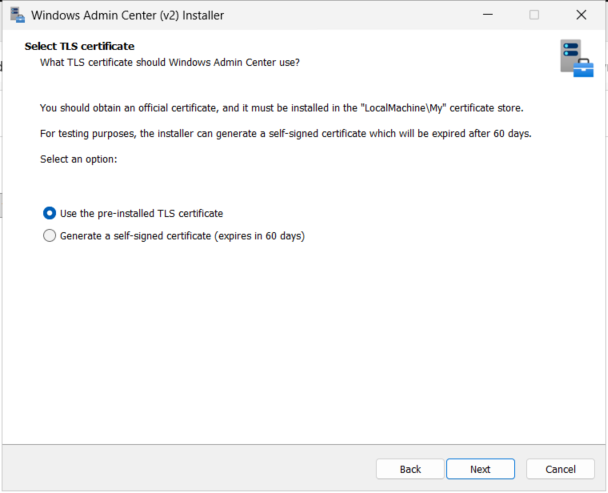
Deux solutions :

- soit utiliser un certificat auto-signé (celui-ci va être généré lors de l'installation).
- utiliser un certificat déjà installé sur la machine.

[![image.png](https://docs.labs404.fr/uploads/images/gallery/2026-07/scaled-1680-/IEmimage-png.png)](https://docs.labs404.fr/uploads/images/gallery/2026-07/scaled-1680-/IEmimage-png.png)
<p class="callout info">**Info** : Dans tous les cas, le certificat pourra être changé à posteriori avec : [WindowsAdminCenter - Mise à jour du certificat](https://docs.labs404.fr/books/roles-services/page/windowsadmincenter-mise-a-jour-du-certificat "WindowsAdminCenter - Mise à jour du certificat")</p>

<details id="bkmrk-certificat-pr%C3%A9-insta"><summary>Certificat pré-installé</summary>

Choisir le thumbprint du certificat à utiliser. Puis faire '<span style="color: rgb(132,63,161);">***Next***</span>'.

[![image.png](https://docs.labs404.fr/uploads/images/gallery/2026-07/scaled-1680-/s82image-png.png)](https://docs.labs404.fr/uploads/images/gallery/2026-07/scaled-1680-/s82image-png.png)

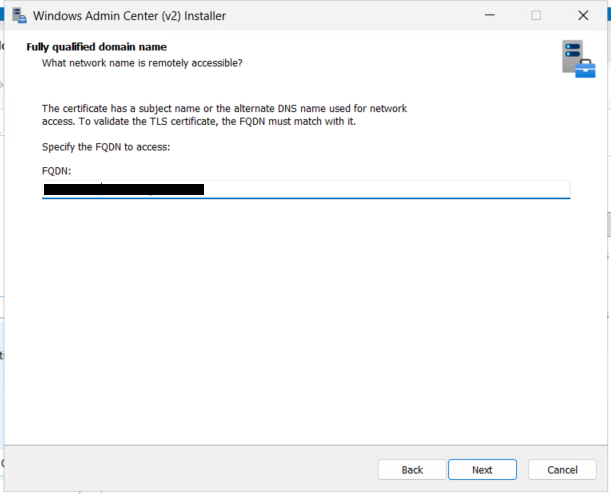
</details>Entrer le FQDN du serveur qui sera utilisé pour accéder à l'admin center. Puis faire '<span style="color: rgb(132,63,161);">***Next***</span>'.

<p class="callout success">**Astuce** : Celui-ci pourra être un alias (CNAME).</p>

[![image.png](https://docs.labs404.fr/uploads/images/gallery/2026-07/scaled-1680-/yqcimage-png.png)](https://docs.labs404.fr/uploads/images/gallery/2026-07/scaled-1680-/yqcimage-png.png)

Choisir si seuls les postes du domaines doivent accéder au serveur ou si des postes externes au domaines y seront amenés.

[![image.png](https://docs.labs404.fr/uploads/images/gallery/2026-07/scaled-1680-/XqNimage-png.png)](https://docs.labs404.fr/uploads/images/gallery/2026-07/scaled-1680-/XqNimage-png.png)
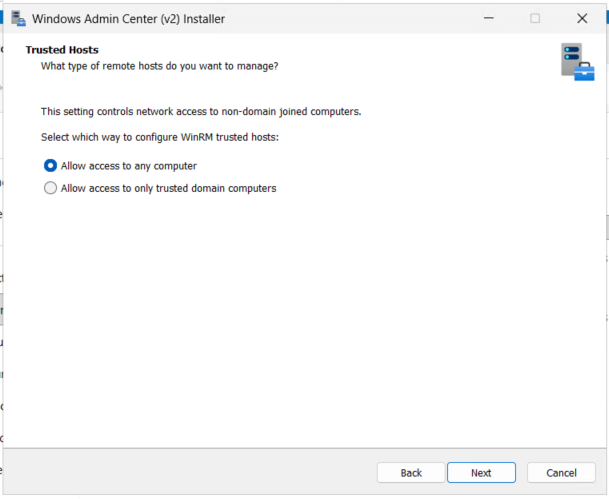
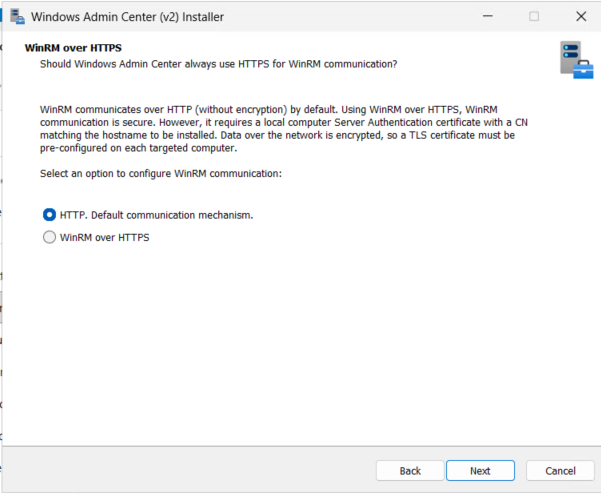
Sélectionner le protocole de transport qui sera utilisé pour WinRM.

(Pour un environement de lab, choisir '<span style="color: rgb(132,63,161);">***HTTP, Default communication mechanism***</span>'.

[![image.png](https://docs.labs404.fr/uploads/images/gallery/2026-07/scaled-1680-/61ximage-png.png)](https://docs.labs404.fr/uploads/images/gallery/2026-07/scaled-1680-/61ximage-png.png)

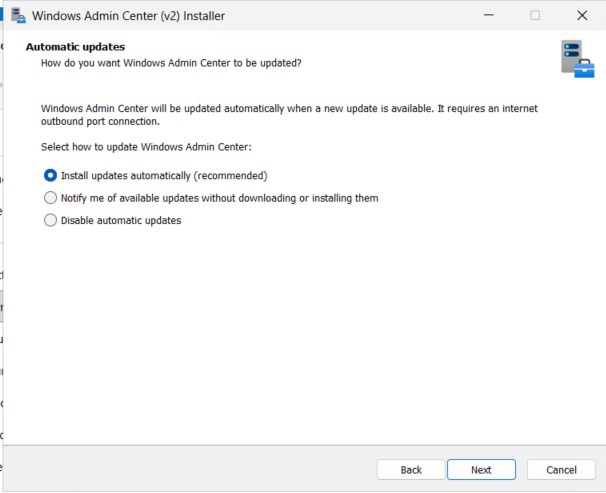
Sélectionner '<span style="color: rgb(132,63,161);">***Install updates automatically (recommended)***</span>' puis faire '<span style="color: rgb(132,63,161);">***Next***</span>'.

[![image.png](https://docs.labs404.fr/uploads/images/gallery/2026-07/scaled-1680-/70jimage-png.png)](https://docs.labs404.fr/uploads/images/gallery/2026-07/scaled-1680-/70jimage-png.png)

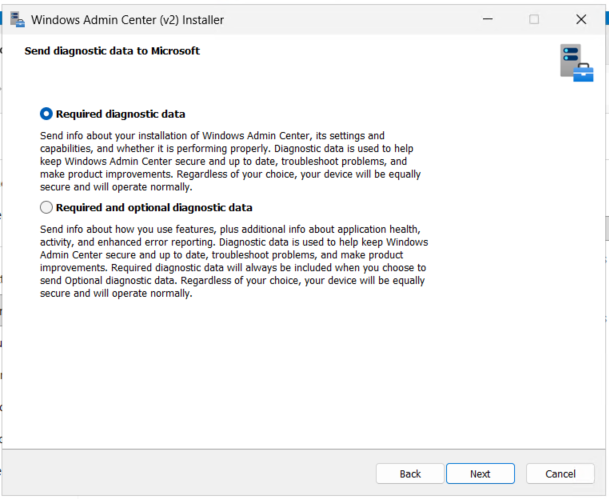
Sélectionner '<span style="color: rgb(132,63,161);">***Required diagnostic data***</span>' puis faire '<span style="color: rgb(132,63,161);">***Next***</span>'.

[![image.png](https://docs.labs404.fr/uploads/images/gallery/2026-07/scaled-1680-/sSlimage-png.png)](https://docs.labs404.fr/uploads/images/gallery/2026-07/scaled-1680-/sSlimage-png.png)

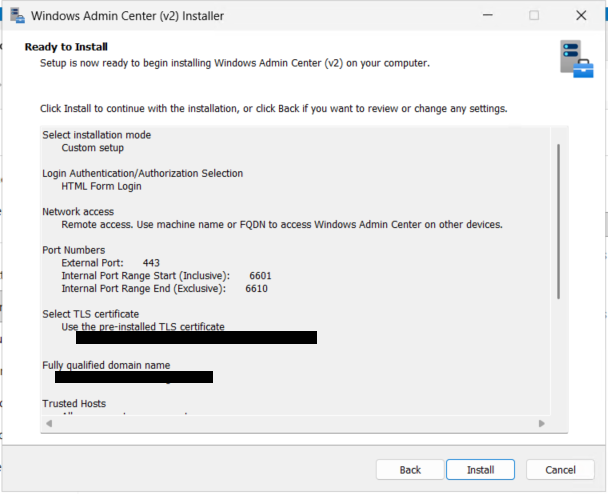
Revoir les paramètres et cliquer sur '<span style="color: rgb(132,63,161);">***Install***</span>'.

[![image.png](https://docs.labs404.fr/uploads/images/gallery/2026-07/scaled-1680-/GWeimage-png.png)](https://docs.labs404.fr/uploads/images/gallery/2026-07/scaled-1680-/GWeimage-png.png)

Attendre la fin de l'installation.

[![image.png](https://docs.labs404.fr/uploads/images/gallery/2026-07/scaled-1680-/Vs3image-png.png)](https://docs.labs404.fr/uploads/images/gallery/2026-07/scaled-1680-/Vs3image-png.png)
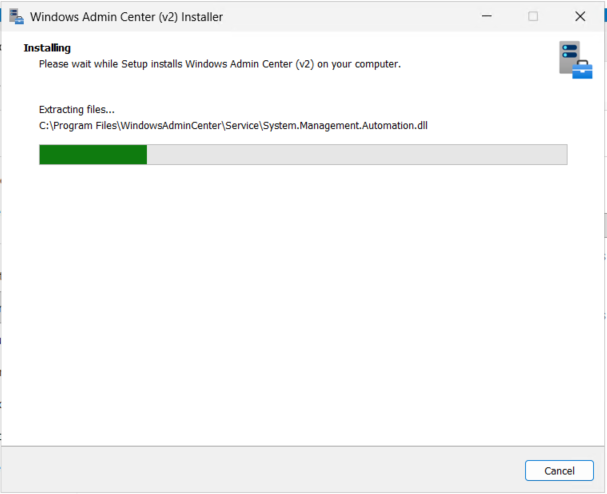
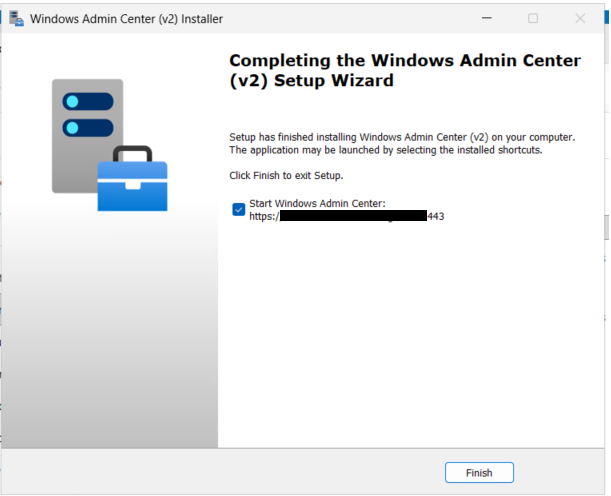
A la fin de l'installation, l'écran suivant s'affiche :

[![image.png](https://docs.labs404.fr/uploads/images/gallery/2026-07/scaled-1680-/ox7image-png.png)](https://docs.labs404.fr/uploads/images/gallery/2026-07/scaled-1680-/ox7image-png.png)
---

### <span style="color: rgb(52,73,94);">**<span style="text-decoration: underline;">III. Configuration</span>**</span>

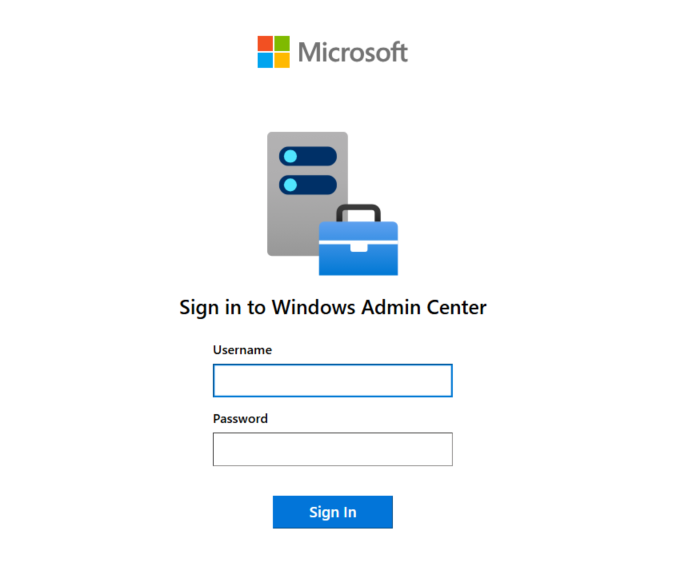
Il est maintenant possible de se connecter avec les identifiants windows à la page web.

[![image.png](https://docs.labs404.fr/uploads/images/gallery/2026-07/scaled-1680-/AoCimage-png.png)](https://docs.labs404.fr/uploads/images/gallery/2026-07/scaled-1680-/AoCimage-png.png)
Le message suivant peut être fermé.

[![image.png](https://docs.labs404.fr/uploads/images/gallery/2026-07/scaled-1680-/05eimage-png.png)](https://docs.labs404.fr/uploads/images/gallery/2026-07/scaled-1680-/05eimage-png.png)
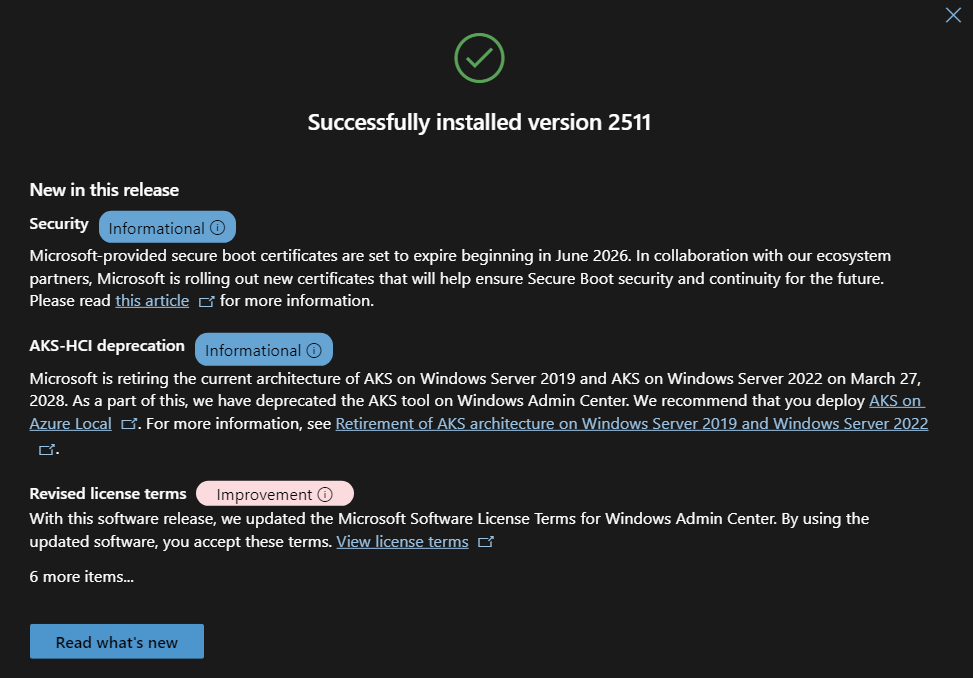
Pour installer les plugins nécessaires au sein du parc, cliquer sur le rouage en haut à gauche.

[![image.png](https://docs.labs404.fr/uploads/images/gallery/2026-07/scaled-1680-/WGVimage-png.png)](https://docs.labs404.fr/uploads/images/gallery/2026-07/scaled-1680-/WGVimage-png.png)

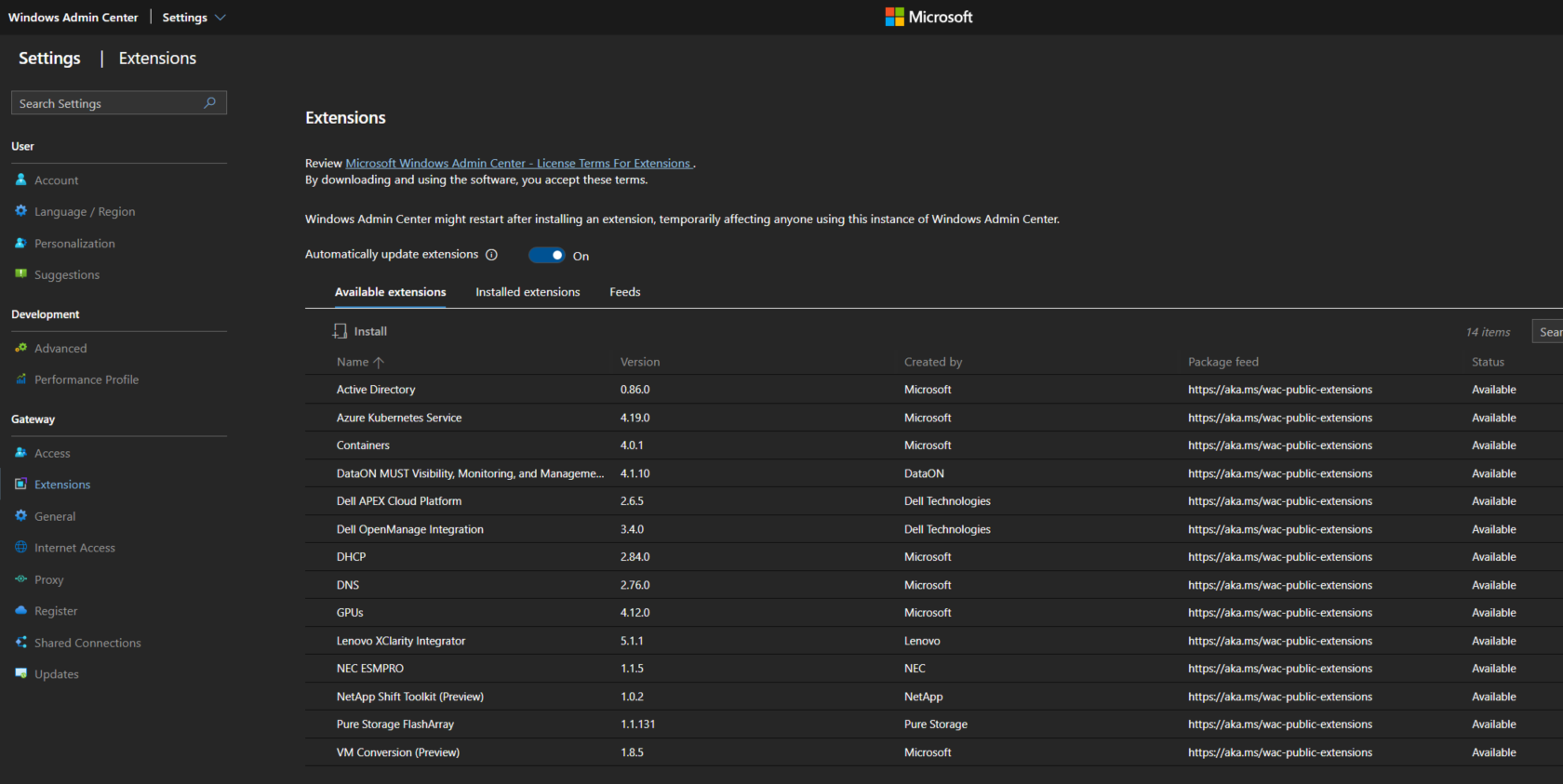
Dans le menu à gauche, aller sur '<span style="color: rgb(132,63,161);">***extensions***</span>'. Vérifier que le bouton '<span style="color: rgb(132,63,161);">***Automaticaly update extensions***</span>' est activé.

[![image.png](https://docs.labs404.fr/uploads/images/gallery/2026-07/scaled-1680-/WN6image-png.png)](https://docs.labs404.fr/uploads/images/gallery/2026-07/scaled-1680-/WN6image-png.png)

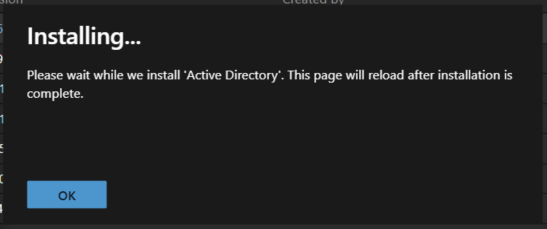
Il suffira de sélectionner celles à installer et cliquer sur '<span style="color: rgb(132,63,161);">***Install***</span>'.

[![image.png](https://docs.labs404.fr/uploads/images/gallery/2026-07/scaled-1680-/f4Jimage-png.png)](https://docs.labs404.fr/uploads/images/gallery/2026-07/scaled-1680-/f4Jimage-png.png)

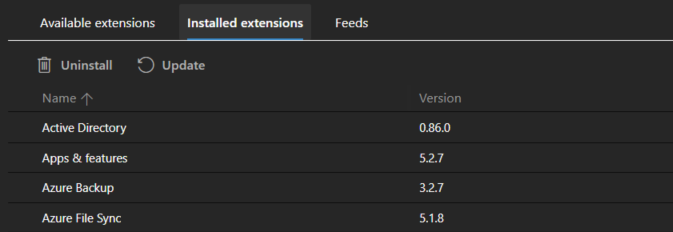
Puis pour les mettre à jour, aller sur '<span style="color: rgb(132,63,161);">***Installed extensions***</span>' et cliquer sur l'icône de mise à jour.

[![image.png](https://docs.labs404.fr/uploads/images/gallery/2026-07/scaled-1680-/8oDimage-png.png)](https://docs.labs404.fr/uploads/images/gallery/2026-07/scaled-1680-/8oDimage-png.png)
---

### <span style="color: rgb(52,73,94);">**<span style="text-decoration: underline;">IV. Ajout des serveurs</span>**</span>

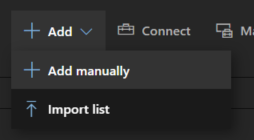
Pour ajouter des serveurs, sur l'écran principal, cliquer sur '<span style="color: rgb(132,63,161);">***+ Add***</span>' puis '<span style="color: rgb(132,63,161);">***Add manually***</span>'.

[![image.png](https://docs.labs404.fr/uploads/images/gallery/2026-07/scaled-1680-/hFeimage-png.png)](https://docs.labs404.fr/uploads/images/gallery/2026-07/scaled-1680-/hFeimage-png.png)

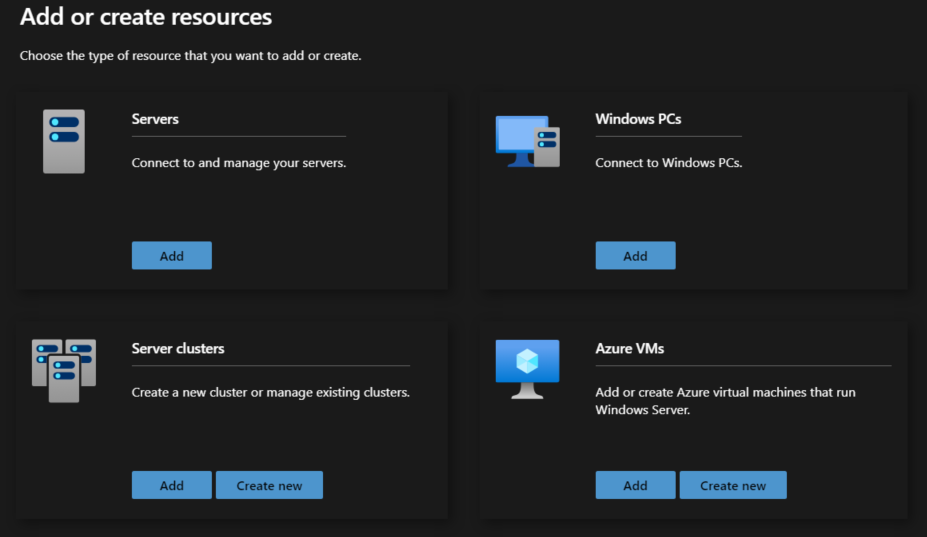
Choisir '<span style="color: rgb(132,63,161);">***Servers***</span>'.

[![image.png](https://docs.labs404.fr/uploads/images/gallery/2026-07/scaled-1680-/cCBimage-png.png)](https://docs.labs404.fr/uploads/images/gallery/2026-07/scaled-1680-/cCBimage-png.png)